Google Authentication
Set up Google authentication for your ProConomics Portal users.
The ProConomics Portal supports Google authentication, allowing users to sign in with their Google accounts. Follow these steps to enable Google authentication.
Step 1 - Create a Google Cloud Project
Go to the Google Cloud Console and create a new project or select an existing one.
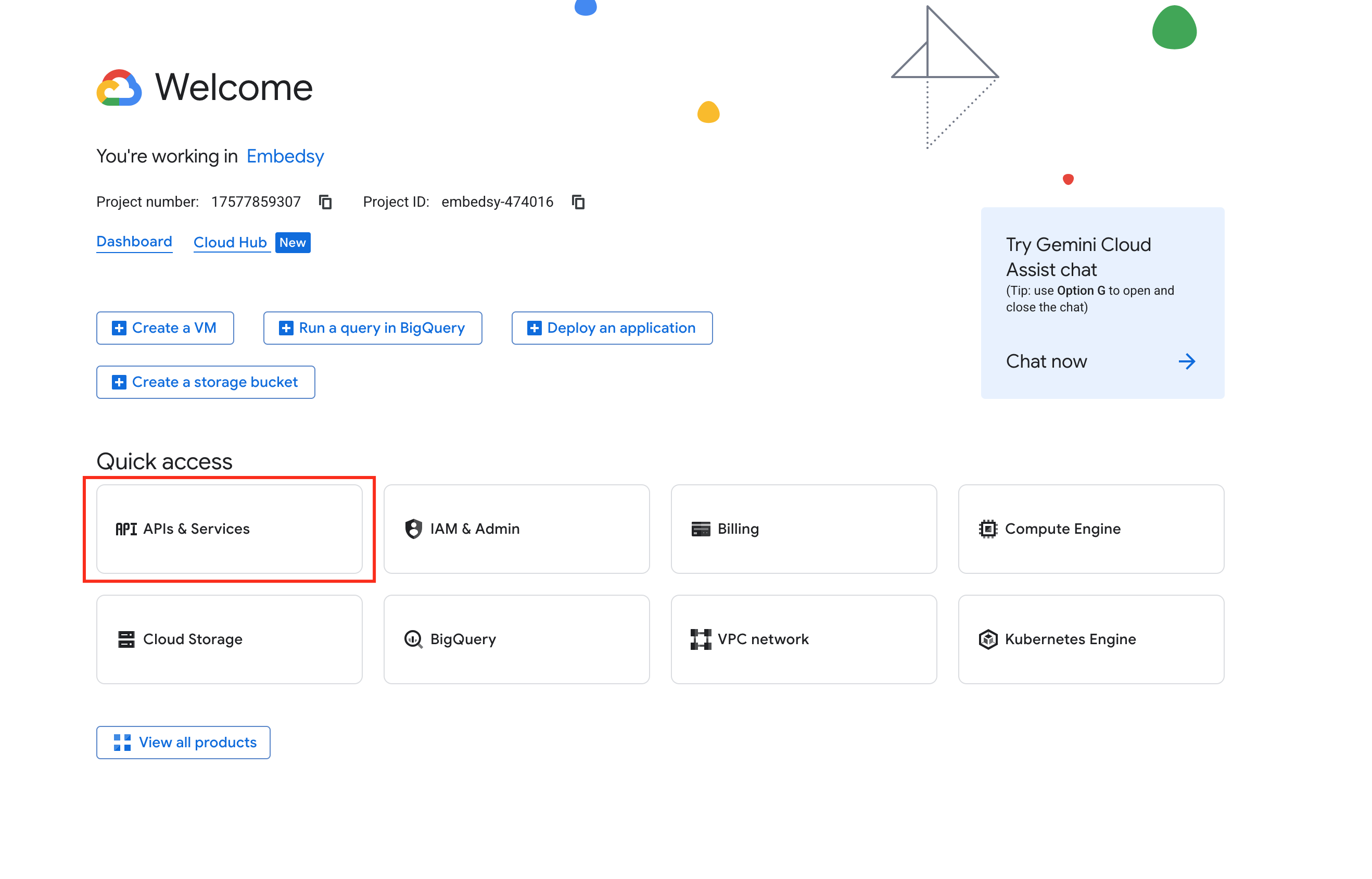
Step 2 - Configure OAuth Consent Screen
Set up the OAuth consent screen with your application details.
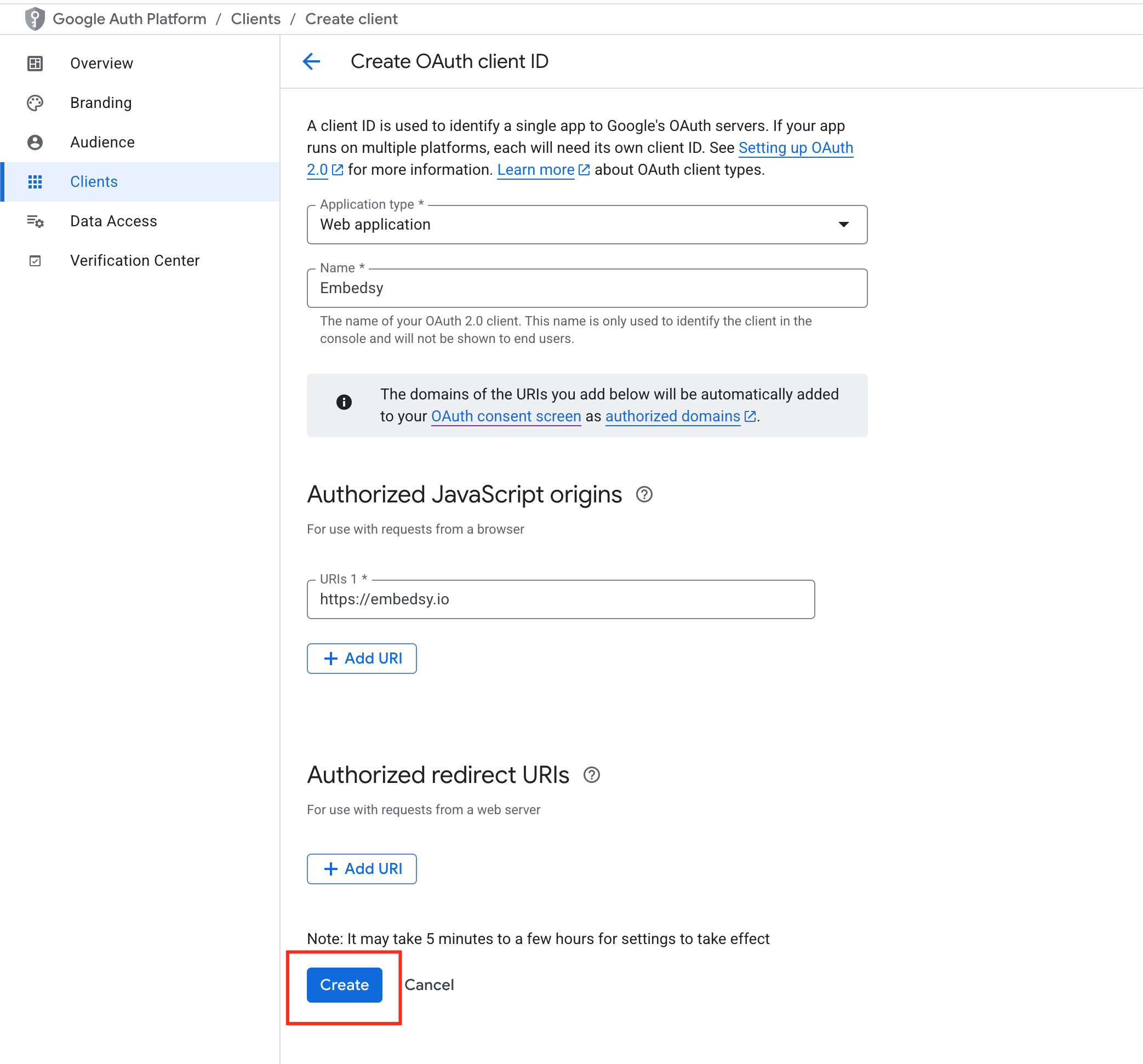
Step 3 - Create OAuth Credentials
Create OAuth 2.0 credentials and note down the Client ID and Client Secret.
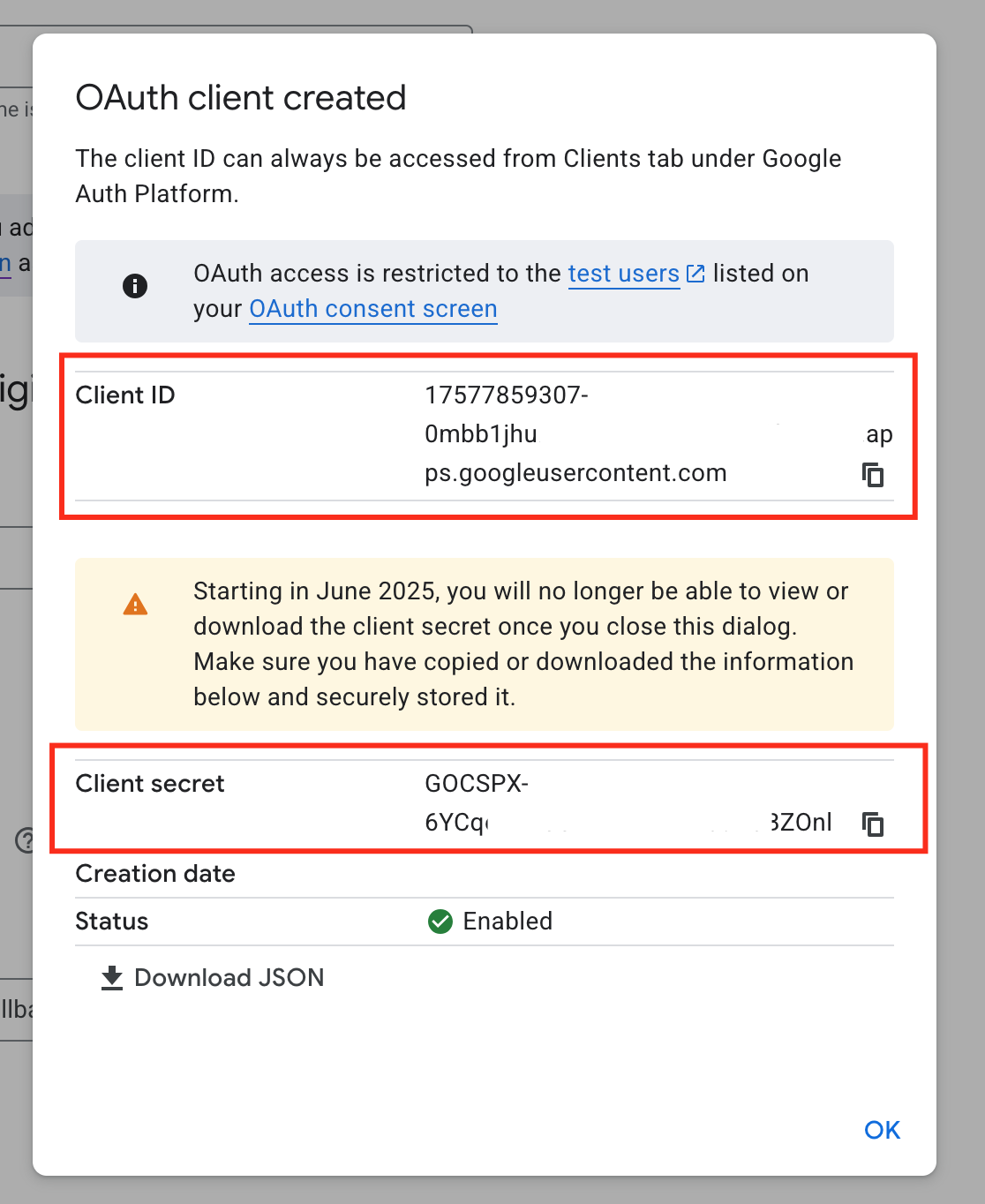
Step 4 - Configure in ProConomics
Enter the Google Client ID and Client Secret in the ProConomics Portal settings.
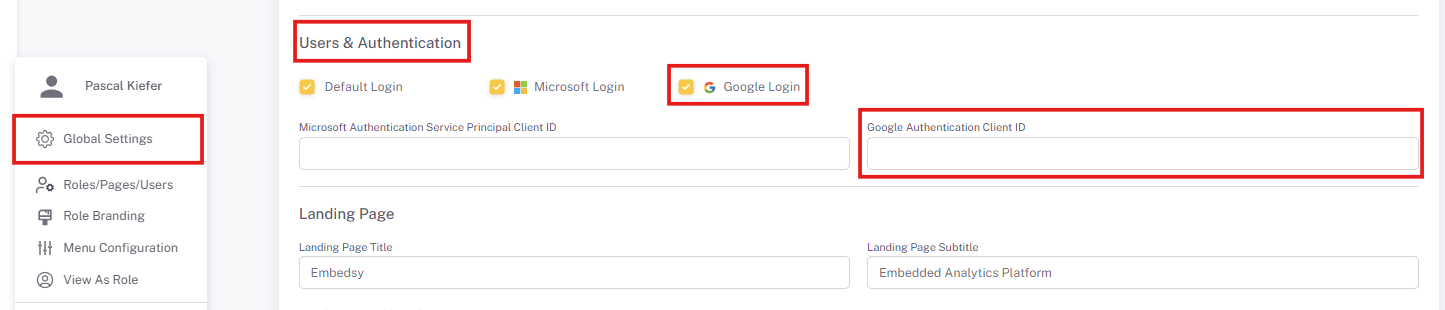
Step 5 - Enable Google Sign-In
Toggle the Google authentication option to enable it for your portal users.
Security Note
Ensure your Google OAuth consent screen is properly configured with the correct authorized redirect URIs. The redirect URI should match your ProConomics Portal domain.
Troubleshooting
- Error 400: redirect_uri_mismatch - Verify that the redirect URI in your Google Cloud Console matches your portal URL exactly.
- Access blocked - Check that the OAuth consent screen is configured correctly and that the app is published or the user is added as a test user.