Service Principal
How to create a Service Principal in Microsoft Entra.
Step 1
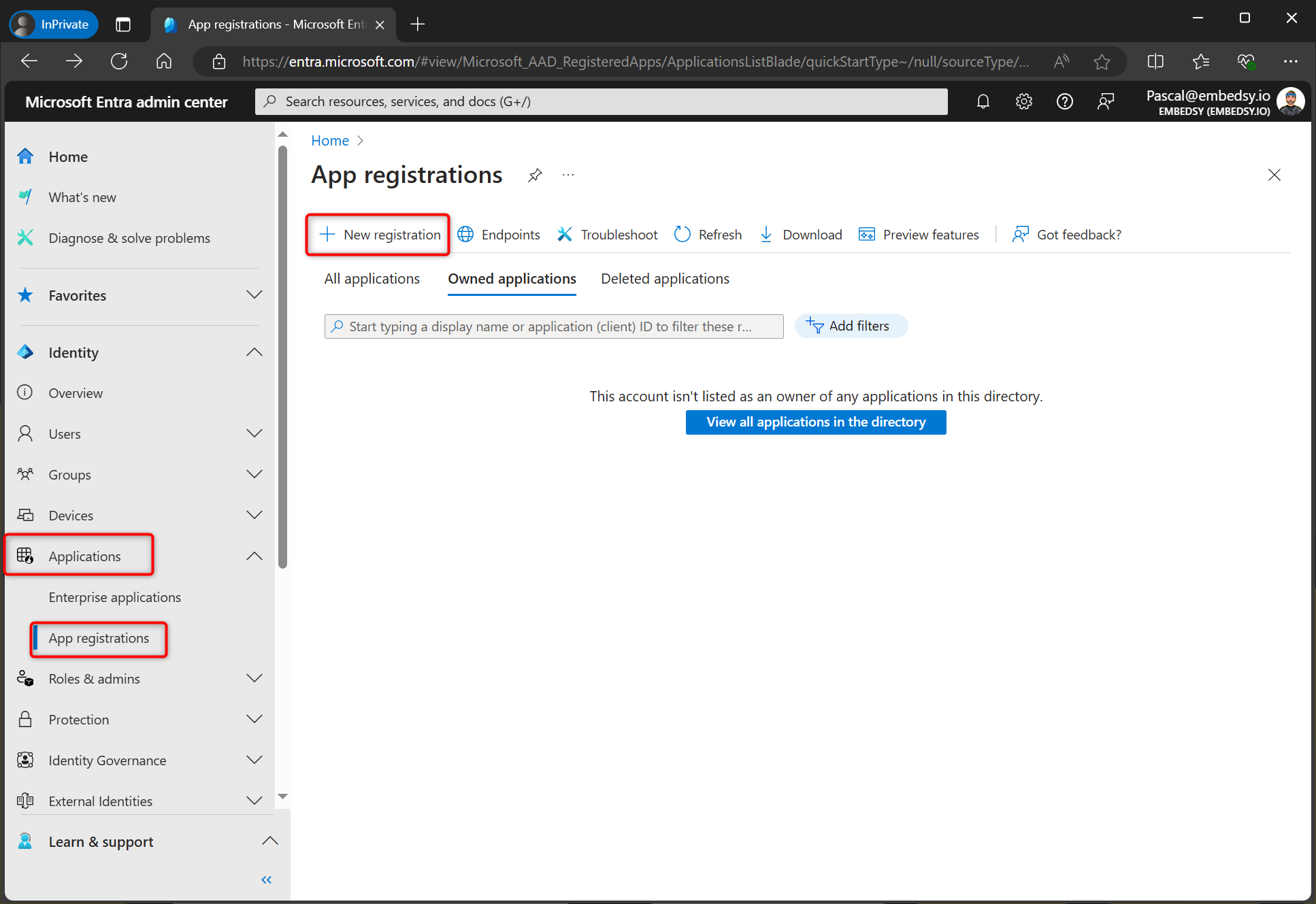
Go to Microsoft Entra and navigate to App Registrations.
Step 2
Click on New Registration.
Step 3
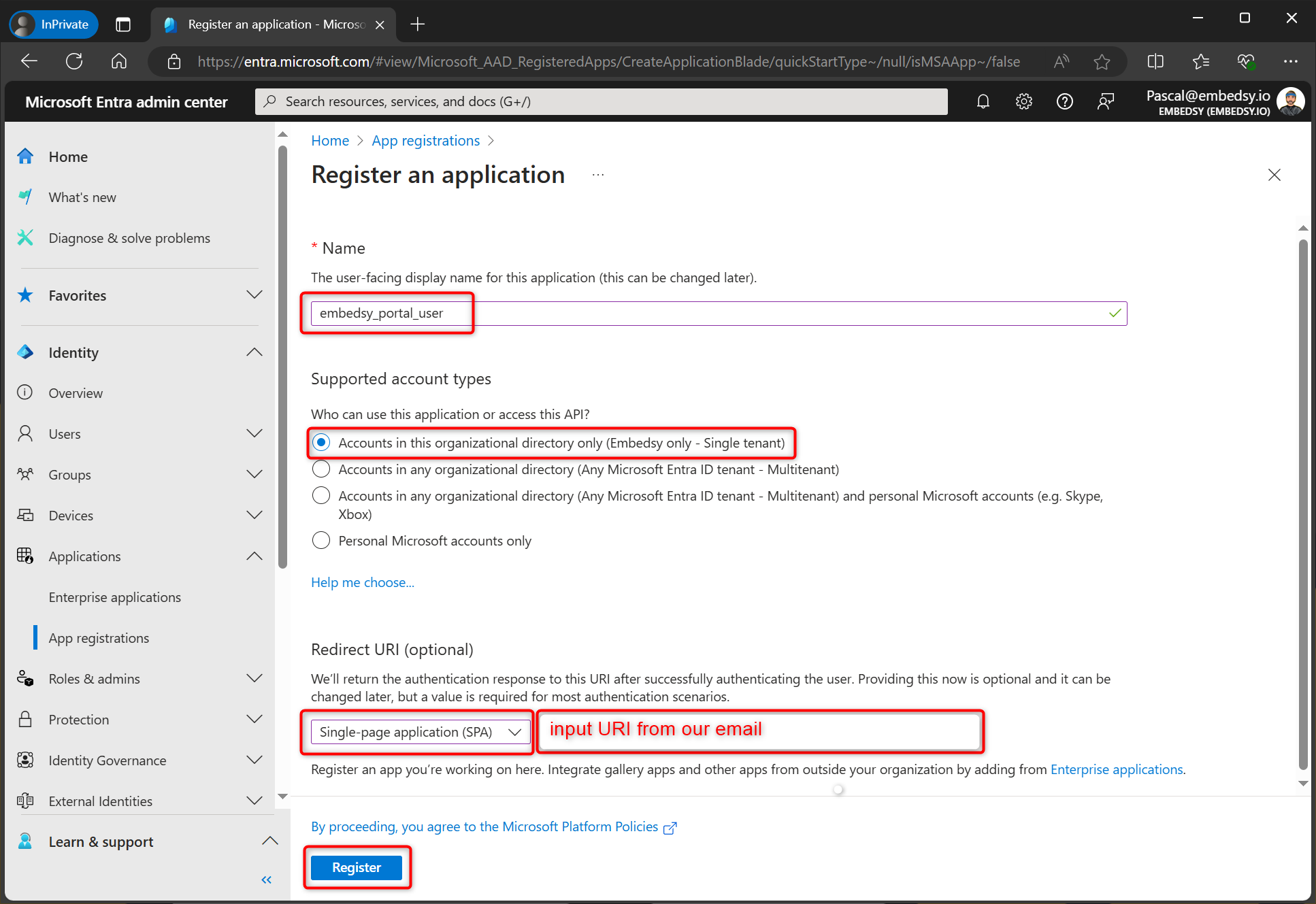
Give this Service Principal a name. In the Redirect URI section, select Web and enter a redirect URI. This is the URL that the user will be redirected to after authentication. If you do not have a custom domain yet, you can use the default azurewebsites.net URI. If you have one, use it. You can always change this later.
Step 4
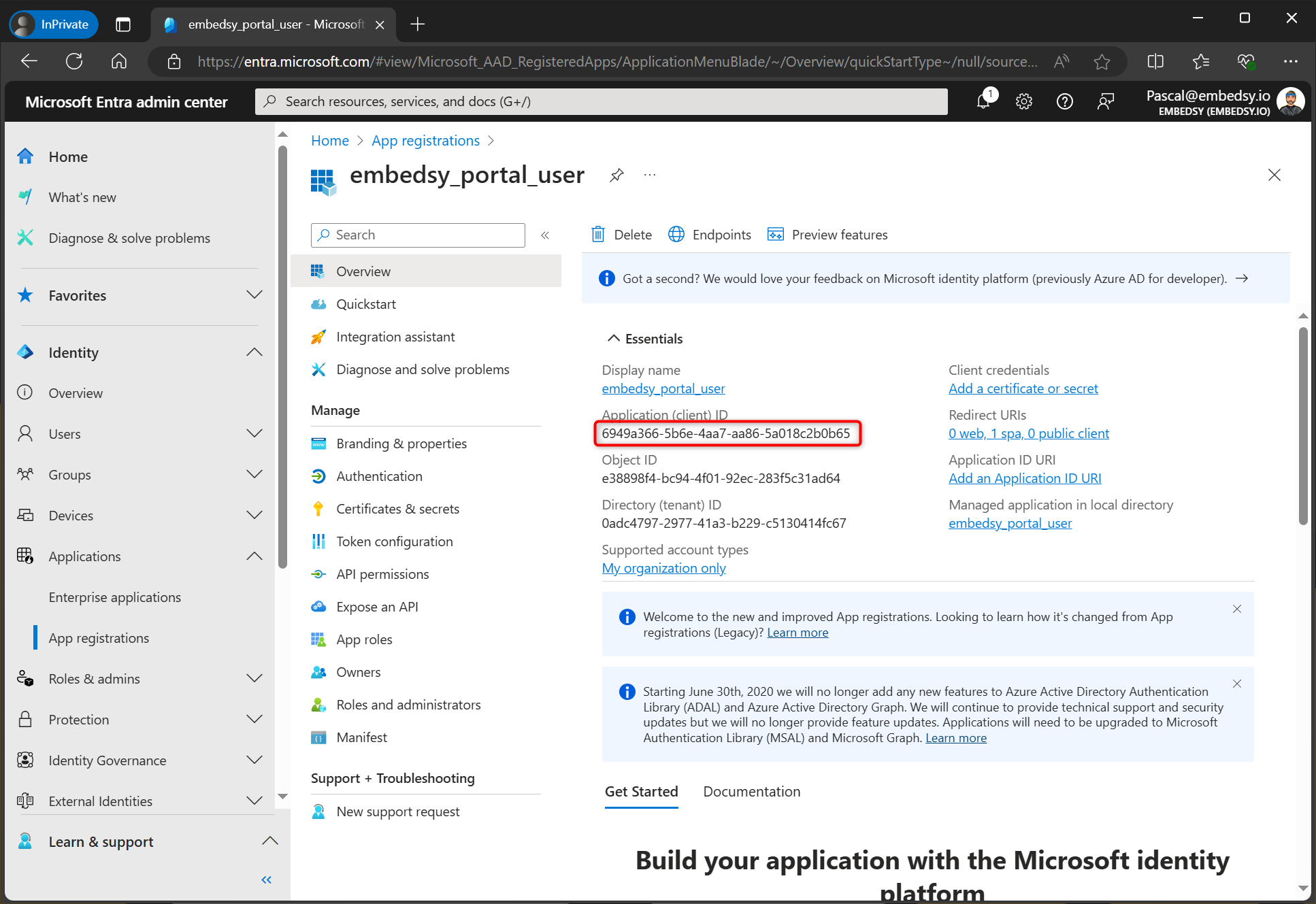
Copy the Application (client) ID. This you will need later, and it will be referred to as the Client ID.
Step 5
Navigate to the Redirect URI section to add an additional Redirect URI. Click on Add a platform.
Step 6
Select Single-page application.
Step 7
Enter the same Redirect URI as in step 3 but append /login/auth-callback to it.
Step 8
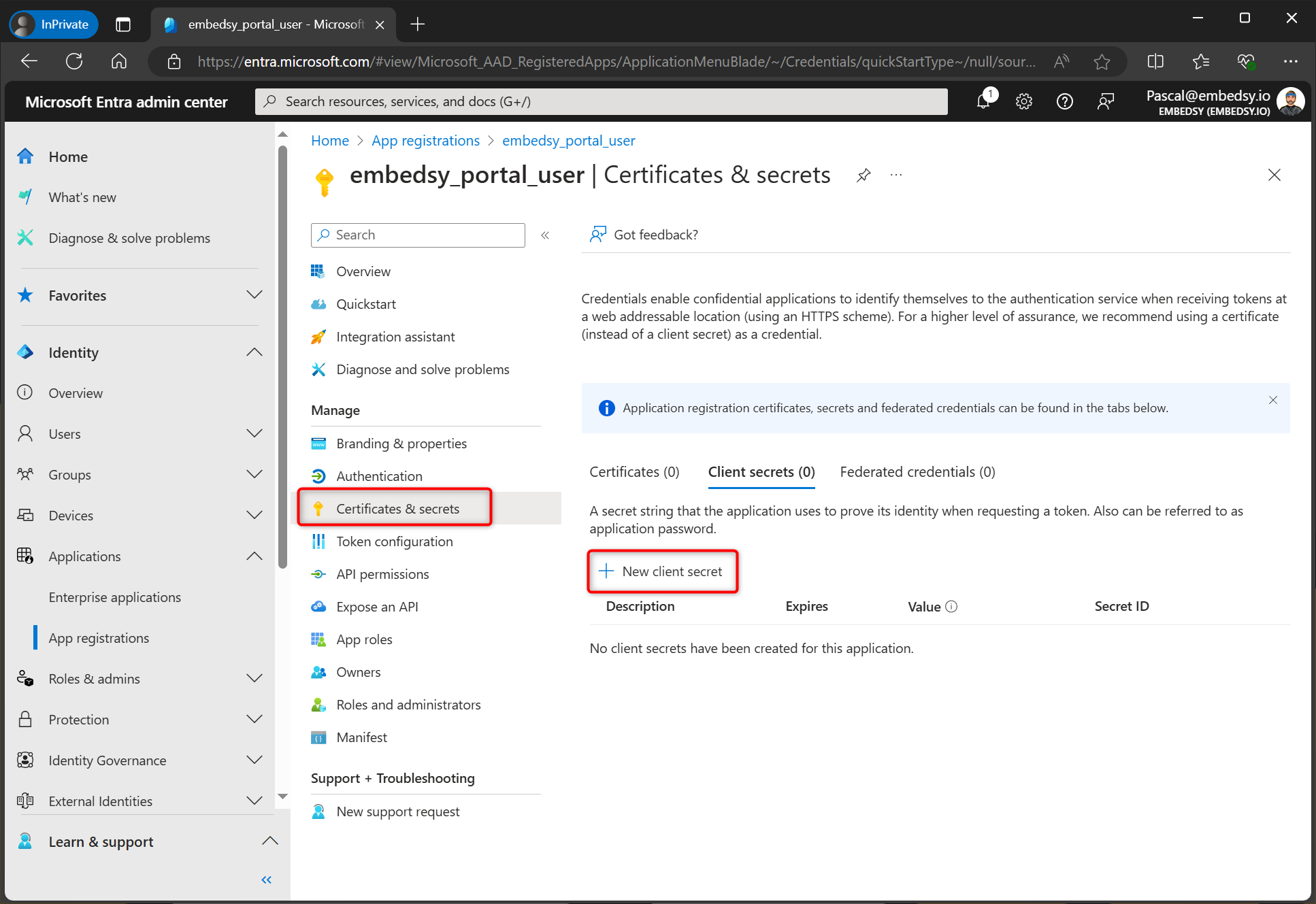
Navigate to the Certificates & secrets section and click on New client secret.
Step 9
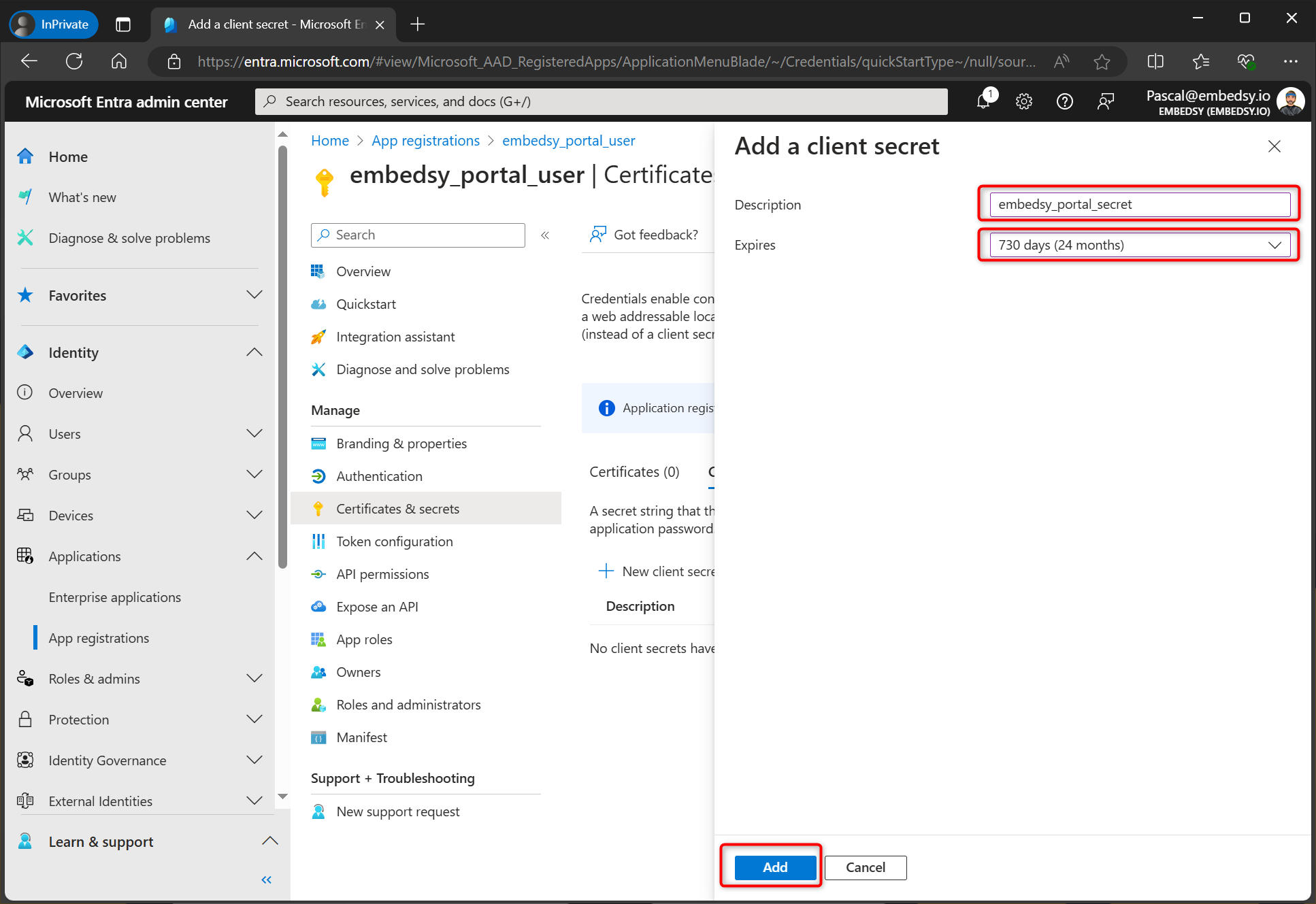
Add a description and select the expiration period. Click Add.
Step 10
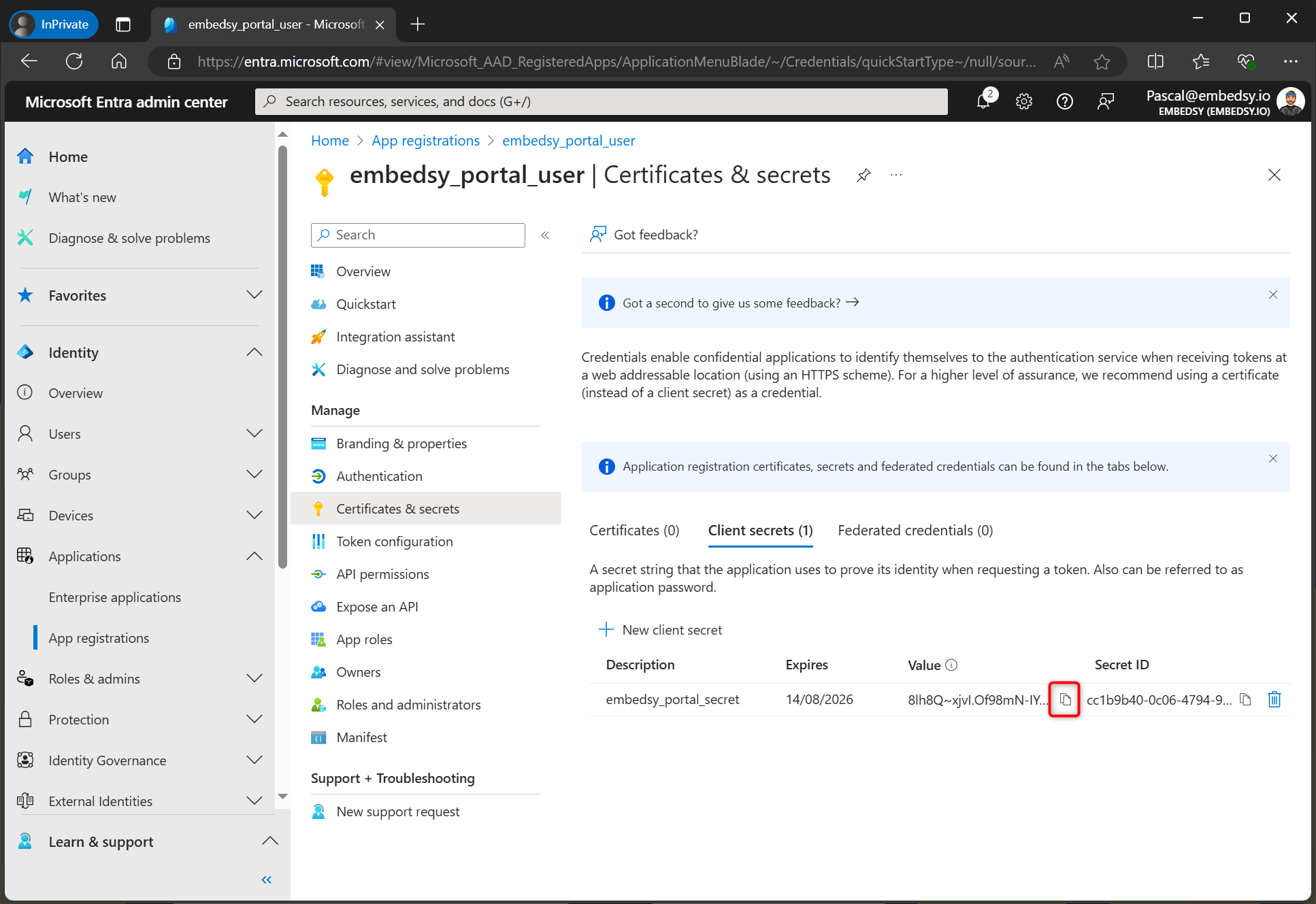
Copy the Value of the client secret. This you will also need later, and it will be referred to as the Client Secret.
Step 11
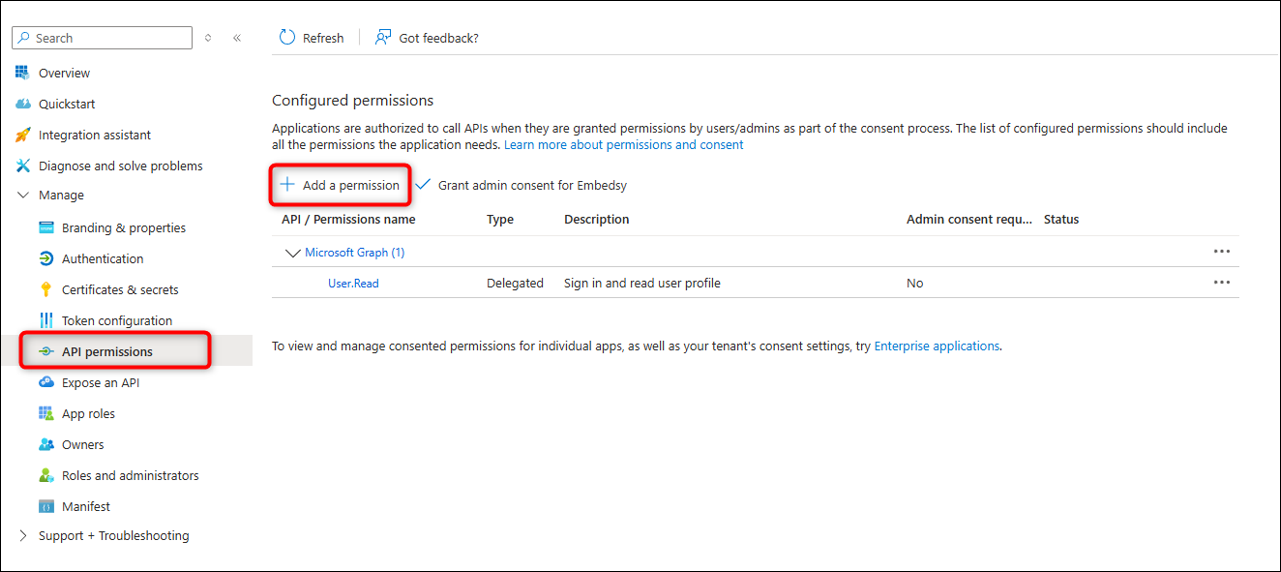
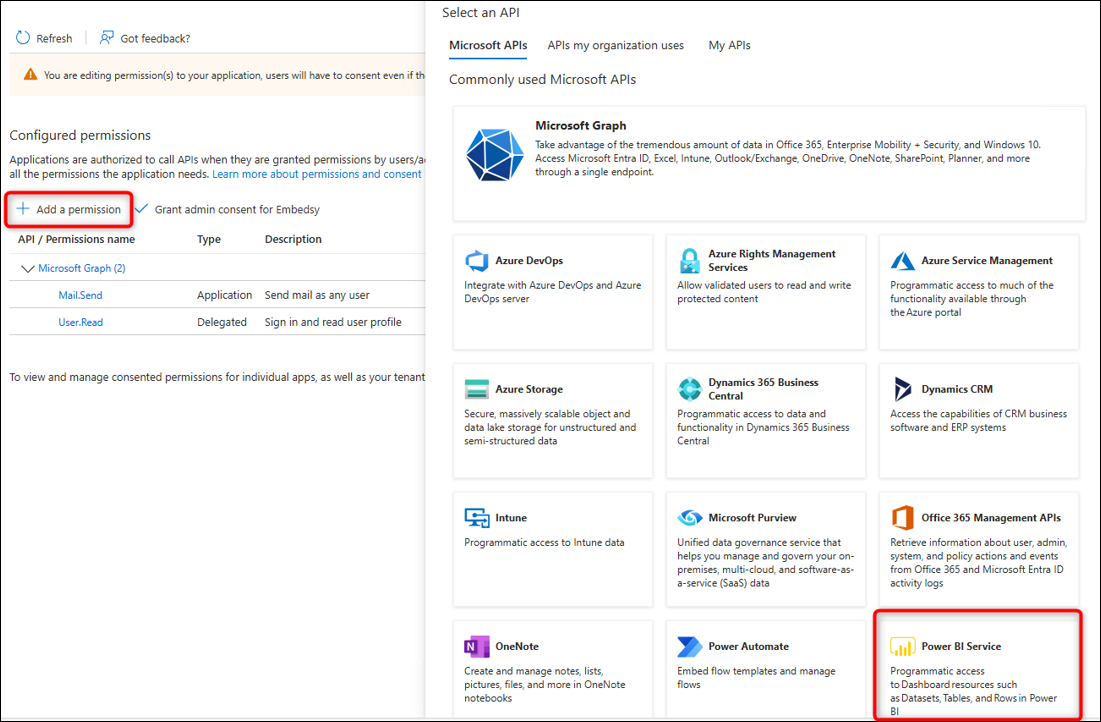
Navigate to API permissions and click on Add a permission.
Step 12
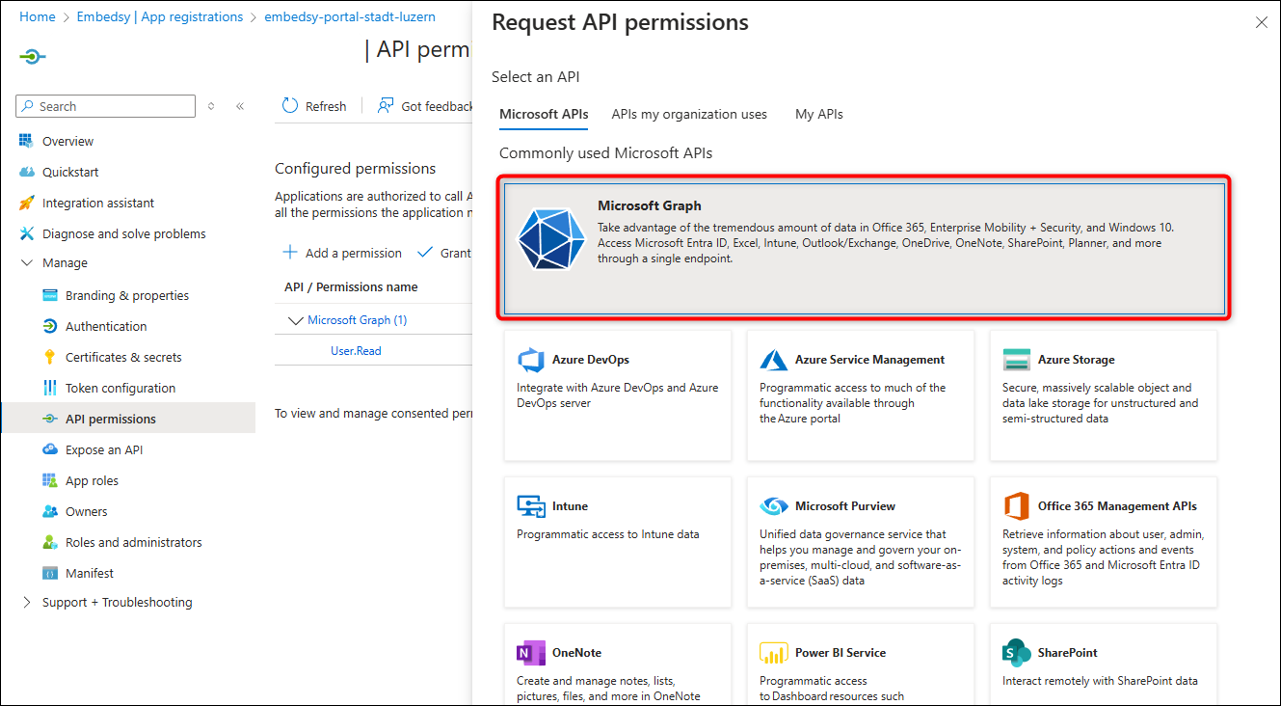
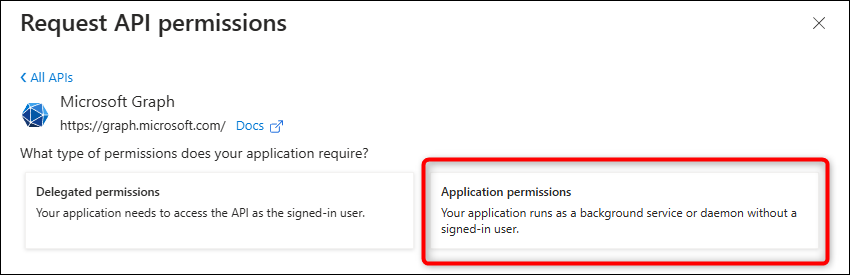
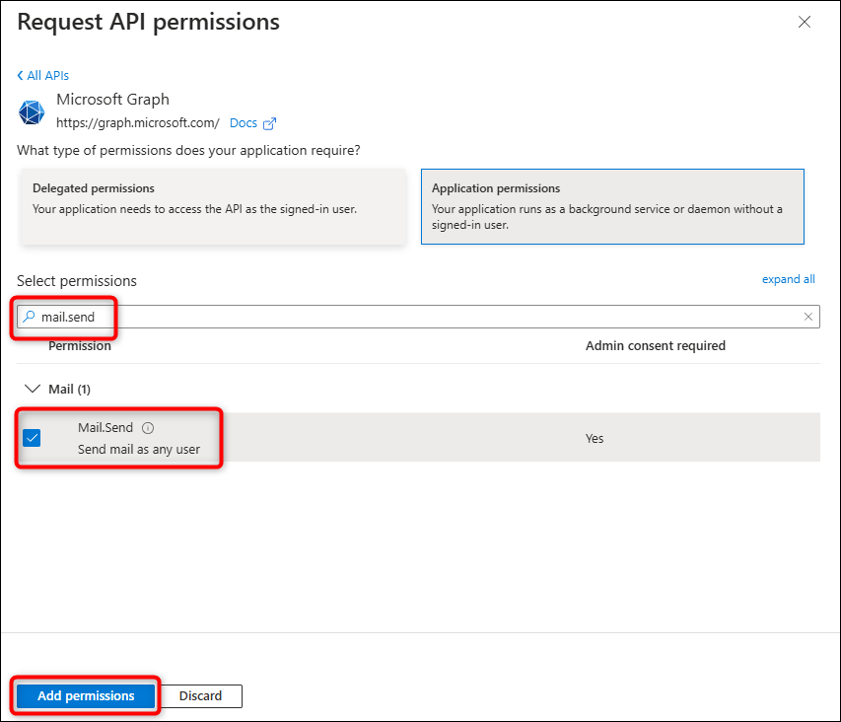
First, add the mail.send permission from Microsoft Graph (Application permissions). This is needed to send emails from the ProConomics Portal.
Step 13
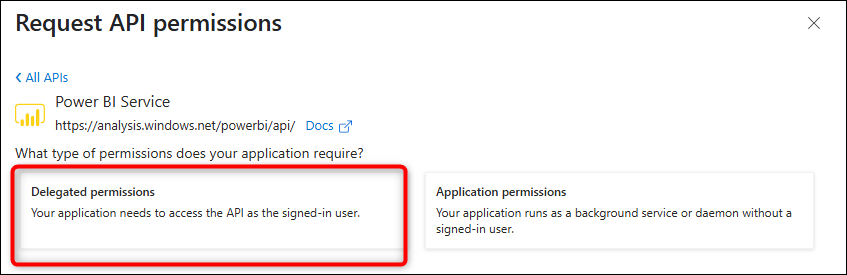
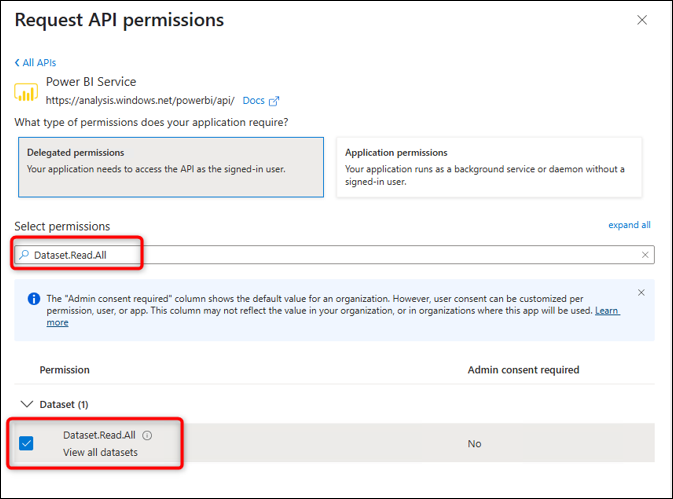
Then add the Power BI Service permissions. Select Delegated permissions and add Dataset.Read.All and Report.Read.All.
Step 14
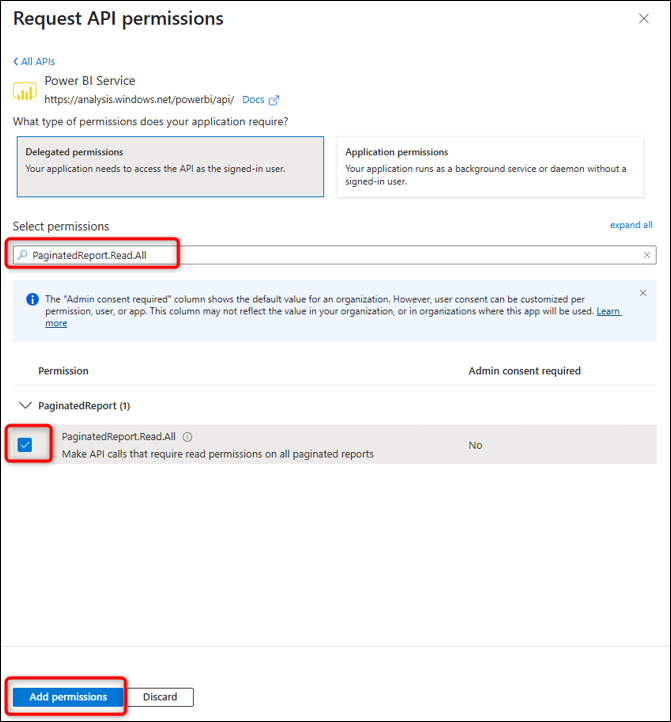
If you want to use Paginated Reports, also add the PaginatedReport.Read.All permission.
Step 15
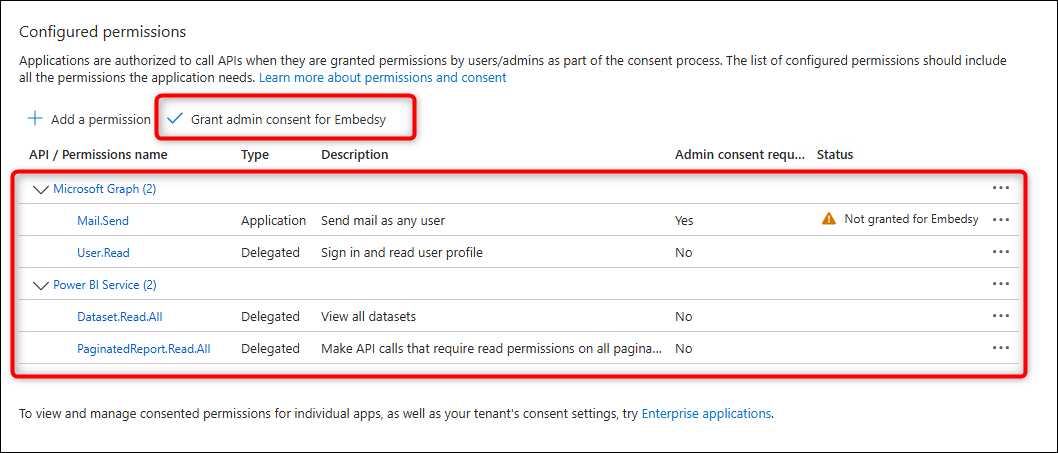
After adding all the permissions, click on Grant admin consent for your organization.
Step 16
The final result should look like this. All permissions should have a green checkmark under the Status column.