What is a Service Principal and why do we need one?
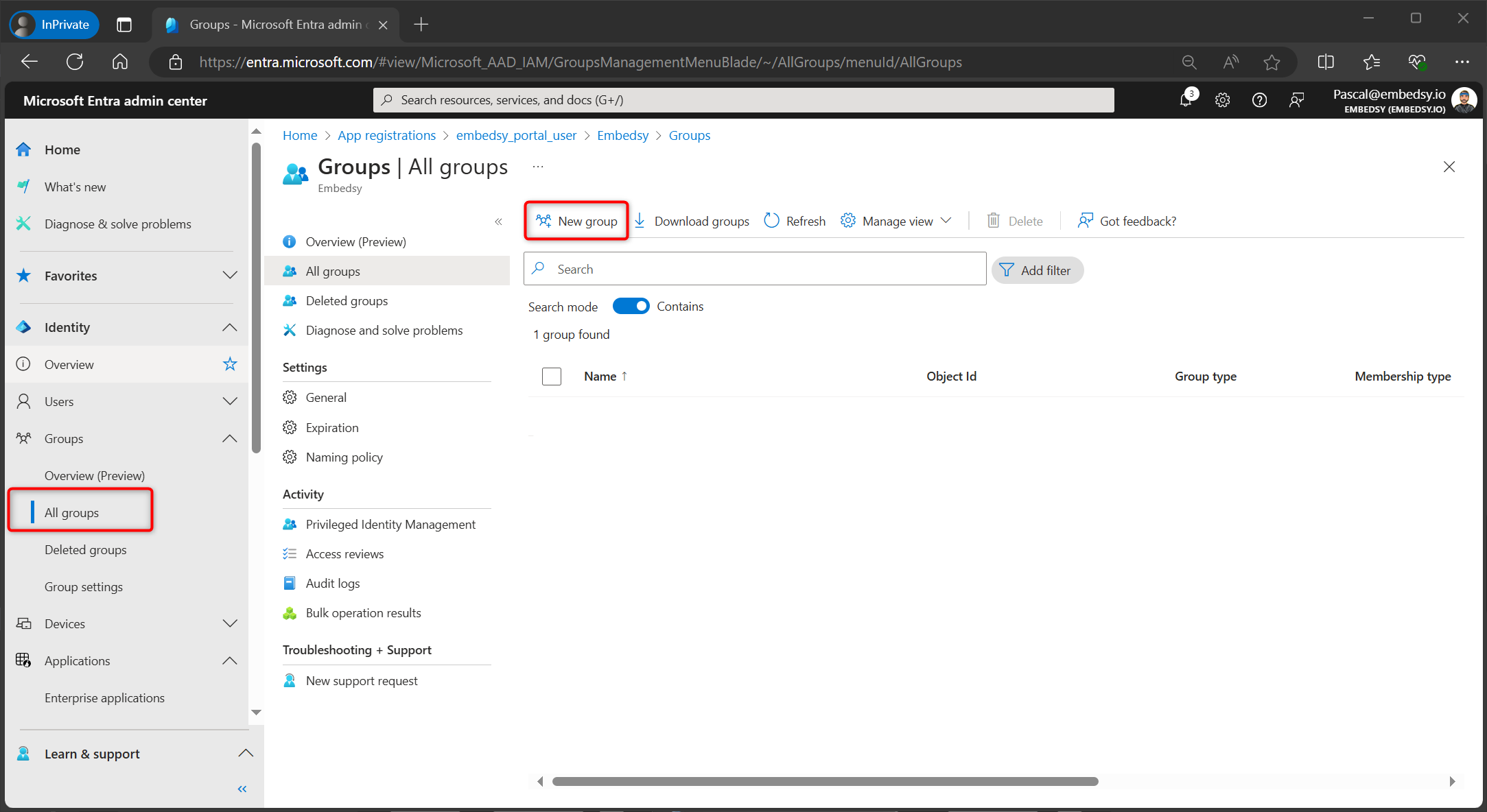
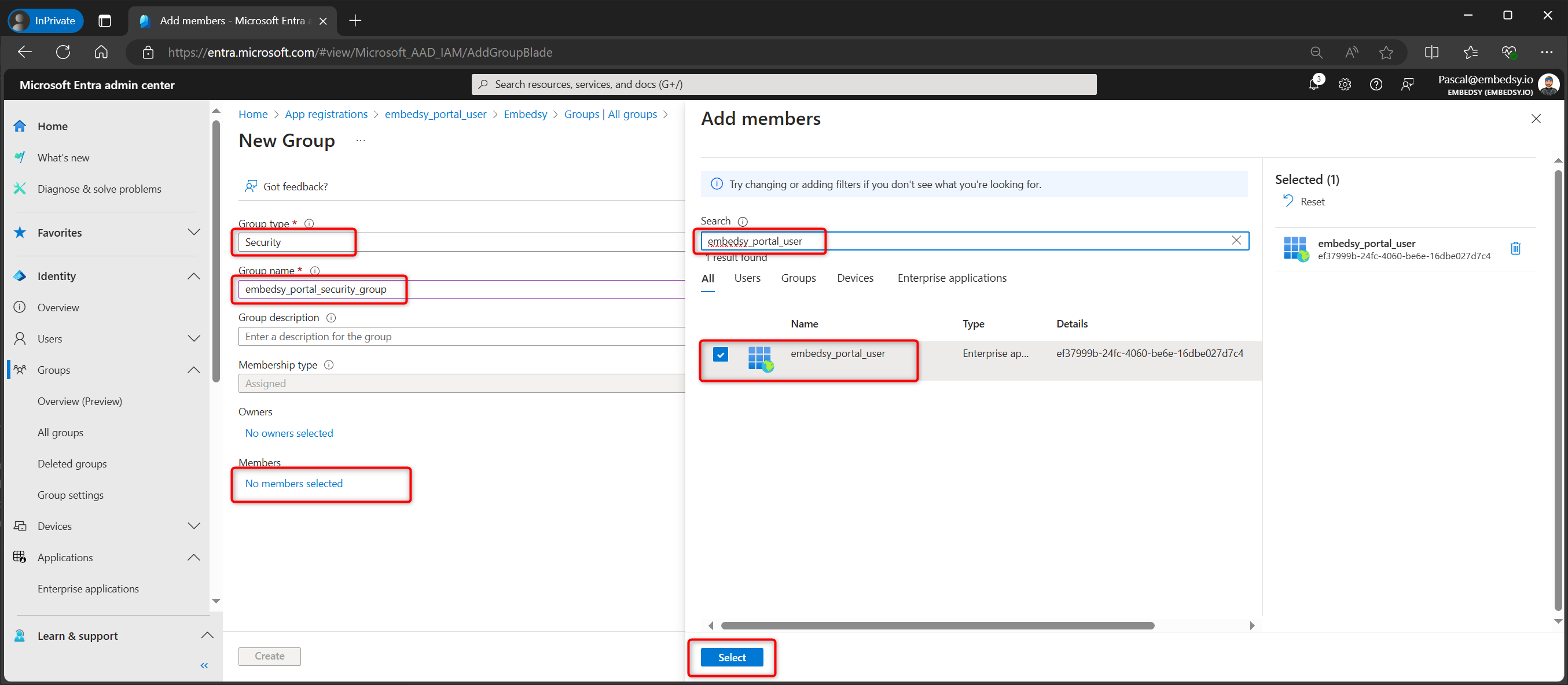
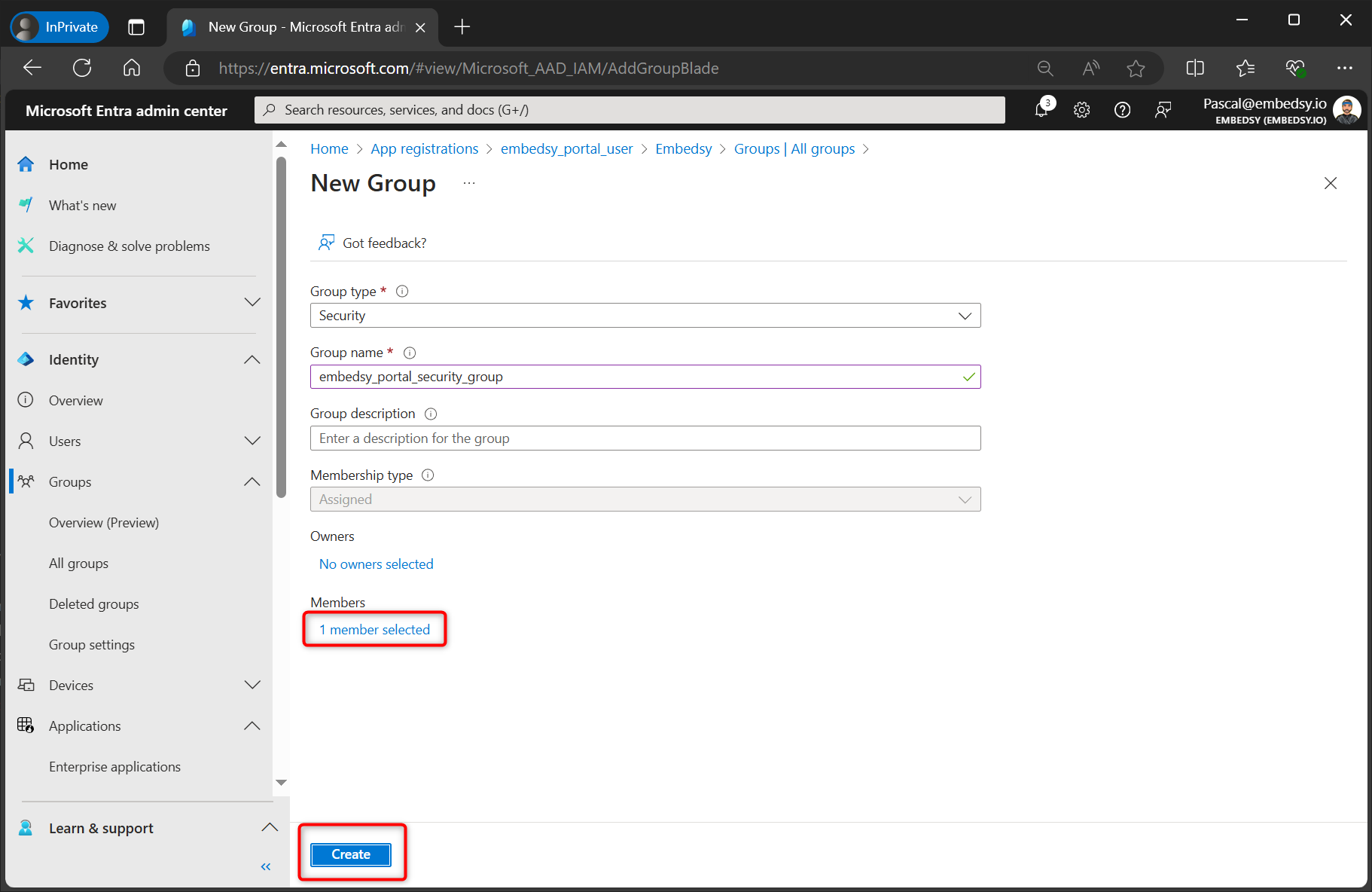
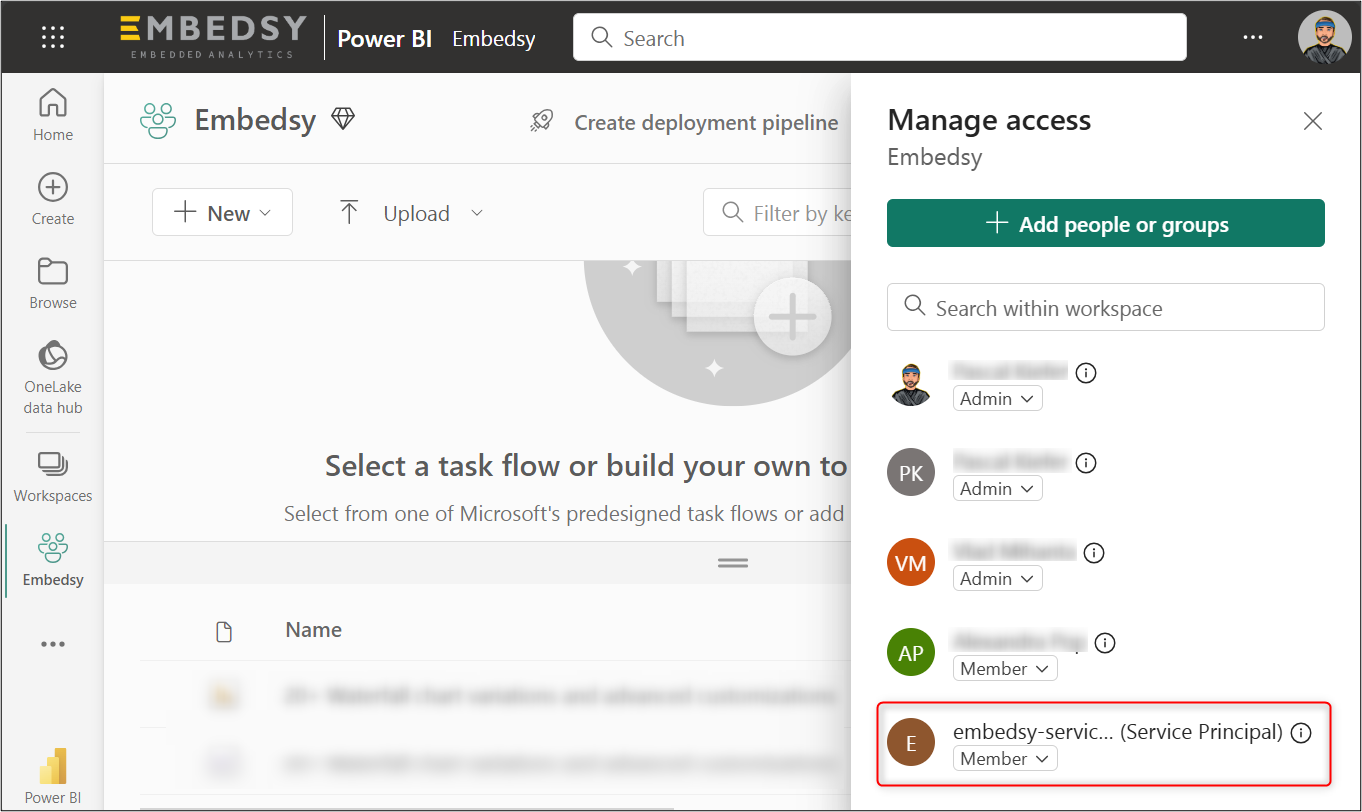
The Service Principal is the technical user that will be used to access the Power BI Reports. It is the user that has access to the Power BI Workspaces that will be shown in the ProEmbedded Portal.
- Log in to Microsoft Entra and register a new application
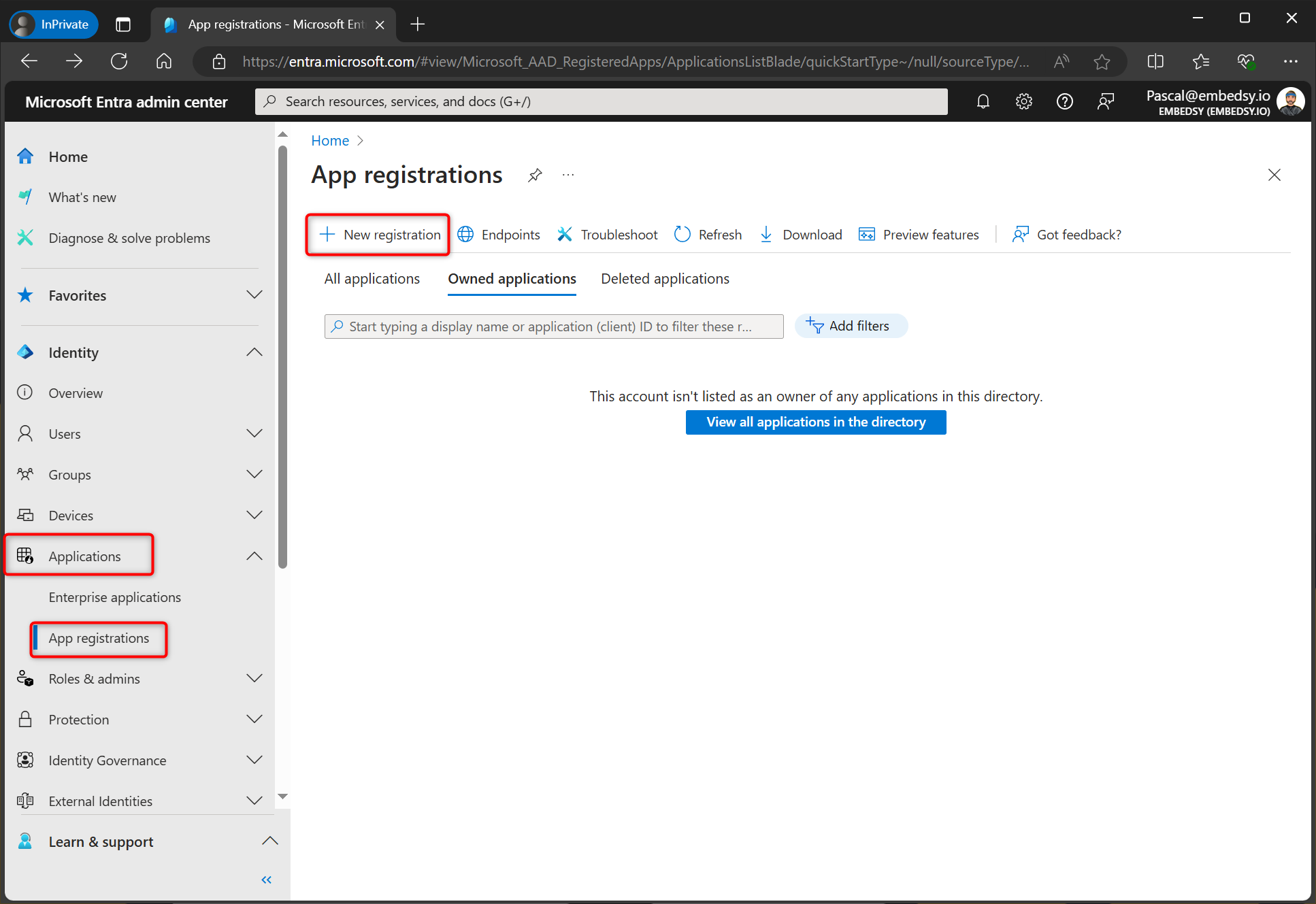
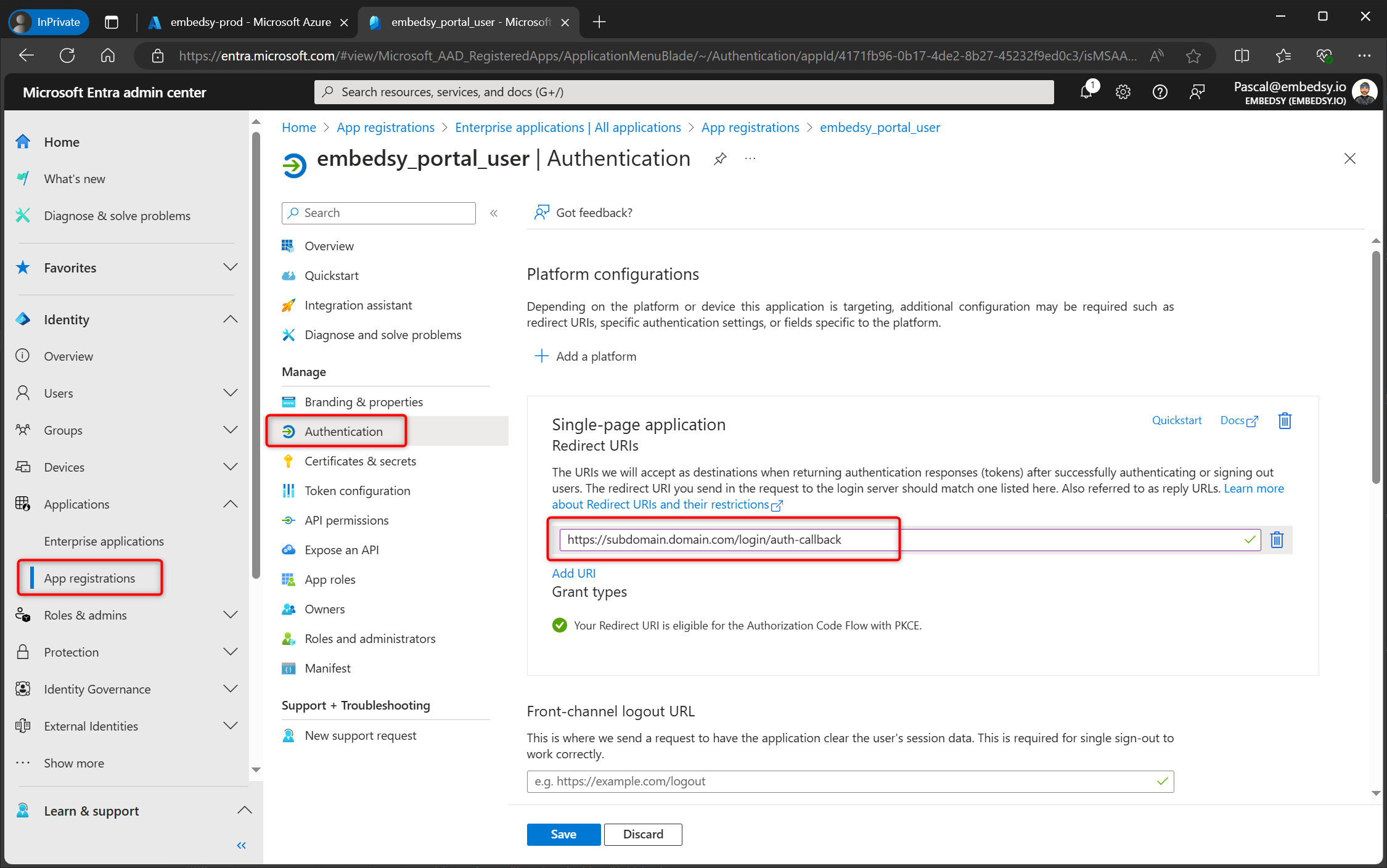
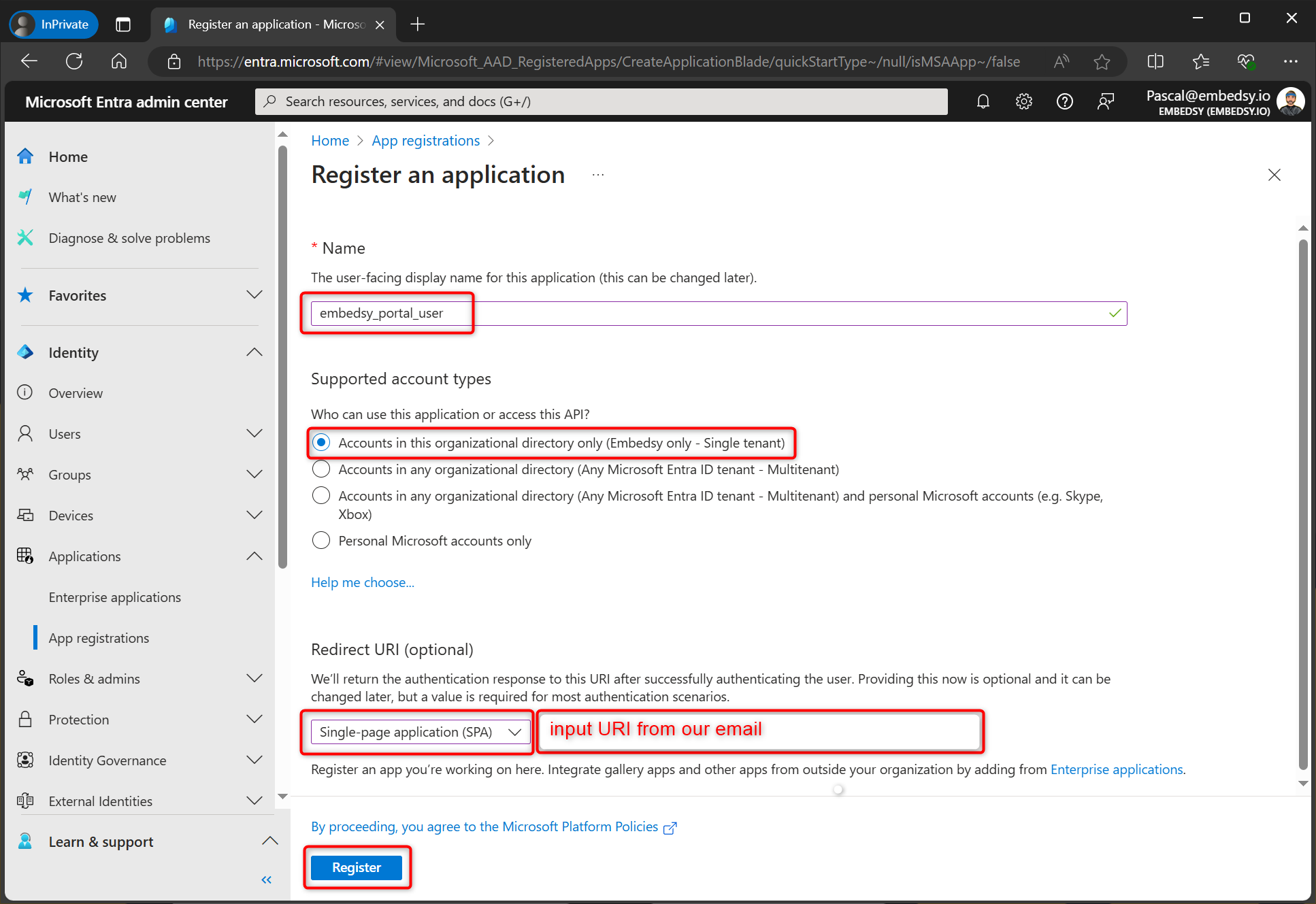
- Make the selections as shown on the screenshot
below. Note that you can pick the name you like for the Service
principal.
Redirect URI
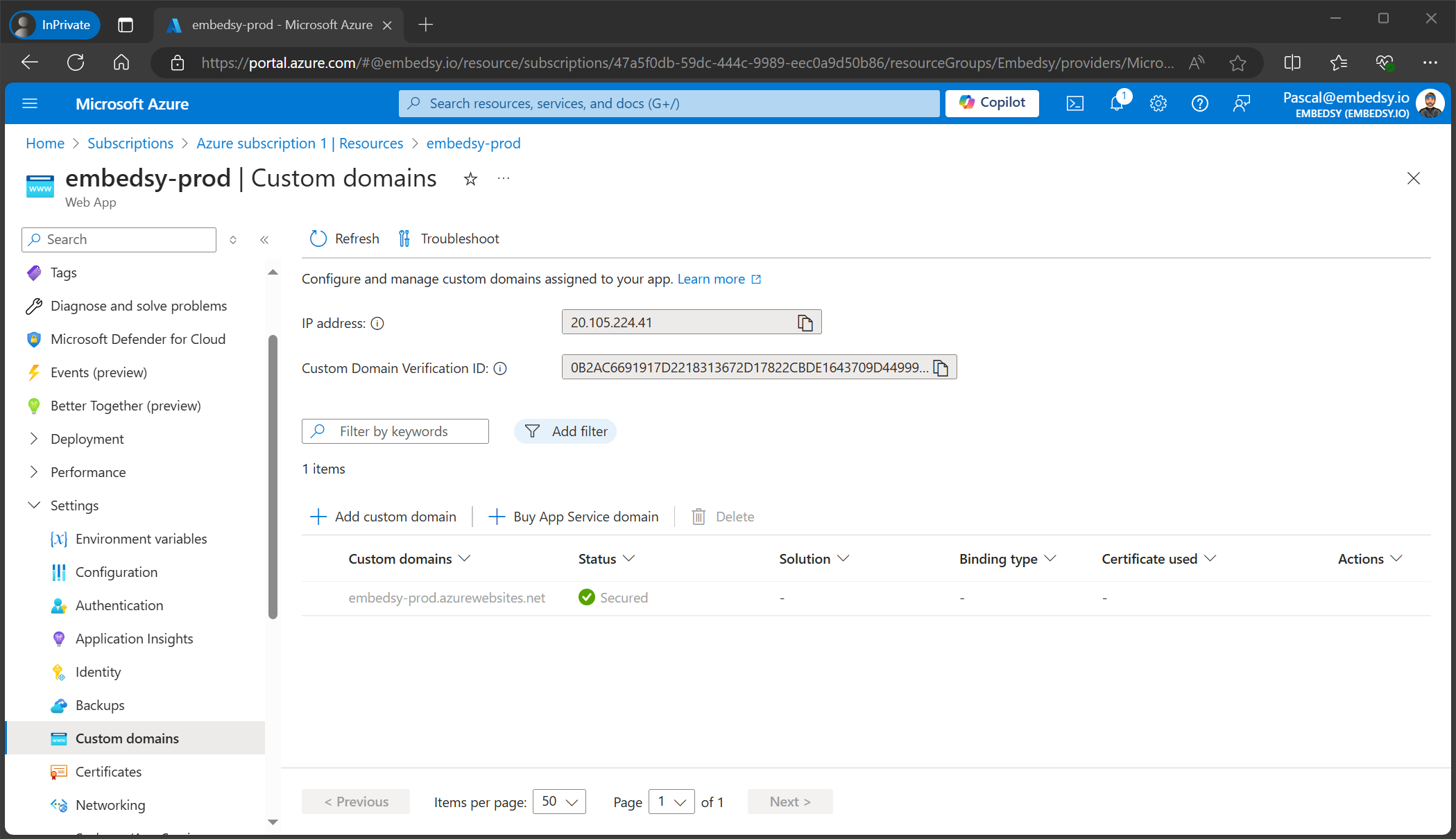
The URI to be used was sent to you via email. Please make sure to use the exact URI from our email to make the ProEmbedded Portal work. Later on in the process, you can also connect the ProEmbedded Portal to a custom domain.
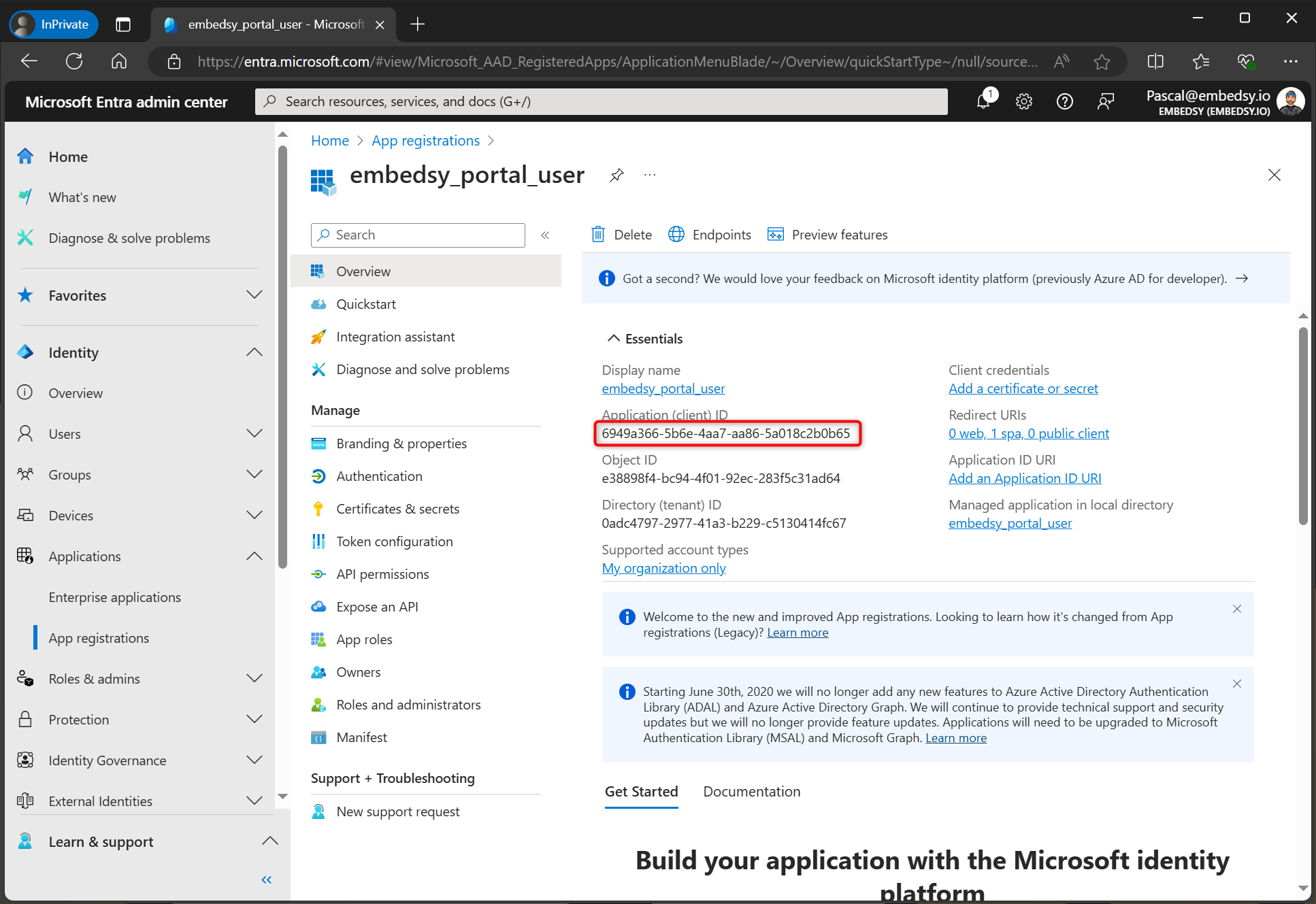
- Copy the Application (client) ID and save it
somewhere, you will need it later in the installation process.
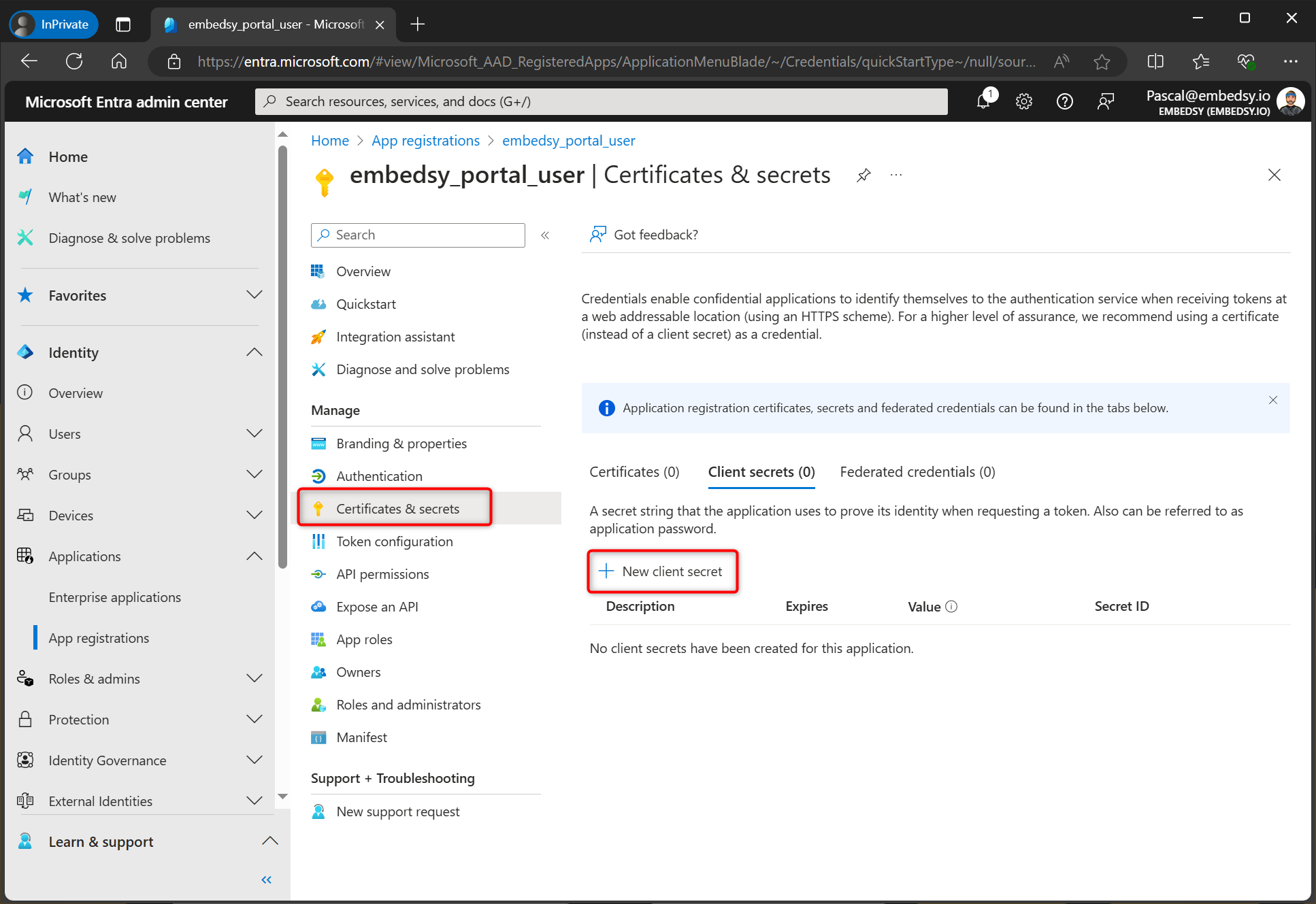
- Navigate to "Certificates & secret" and create a
new client secret.
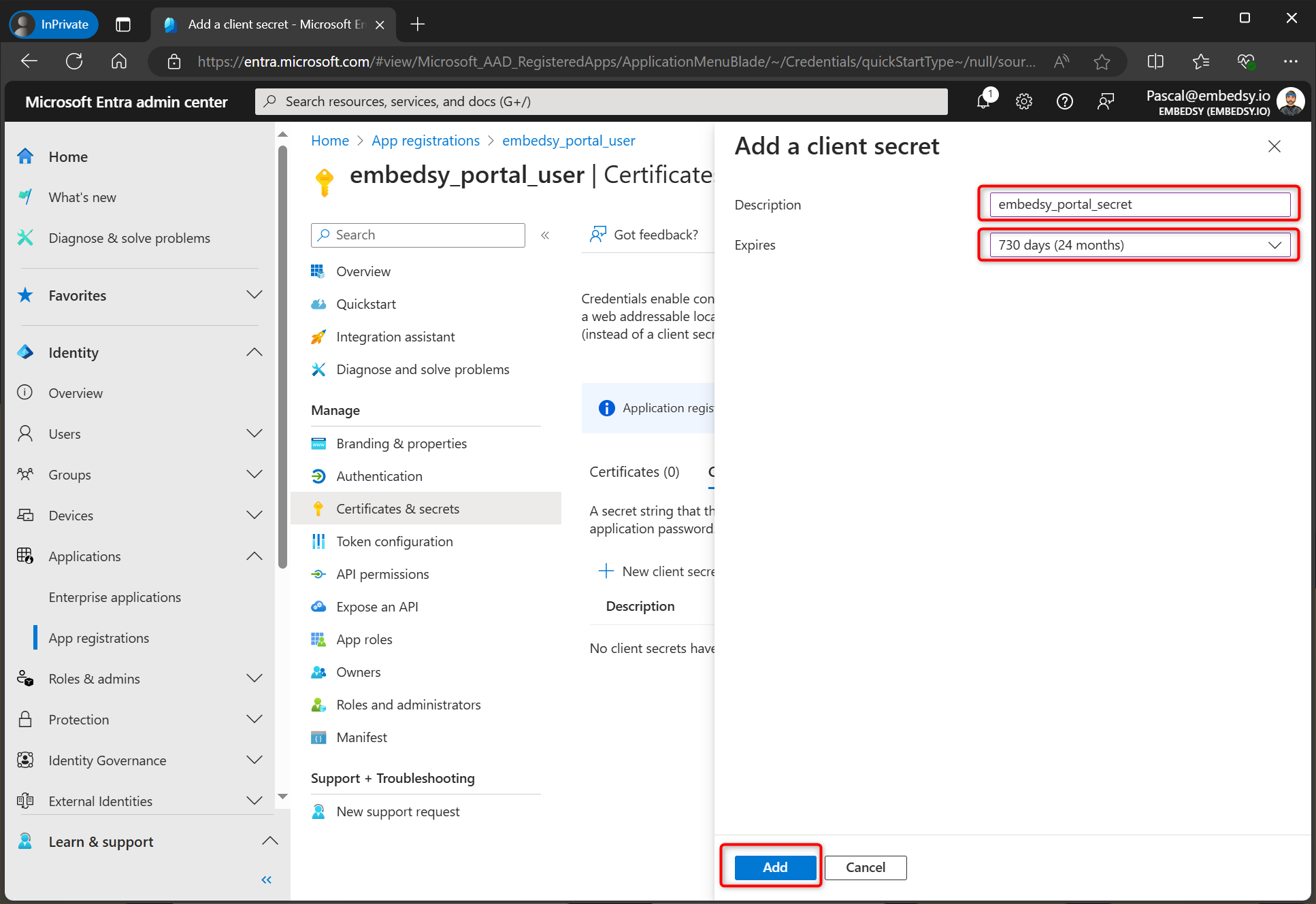
- Add a description for the client secret. You can
use the one from the screenshot or input your own description.
Decide when the client secret should expire.
Expiry of Client Secret
When there is no valid client secret assigned to the Service Principal, users will not be able to see any reports in the ProEmbedded Portal. Therefore, it can be a good idea to set the expiry date at the maximum. We also have an article that shows how to create a new client secret and add it to the ProEmbedded Portal.
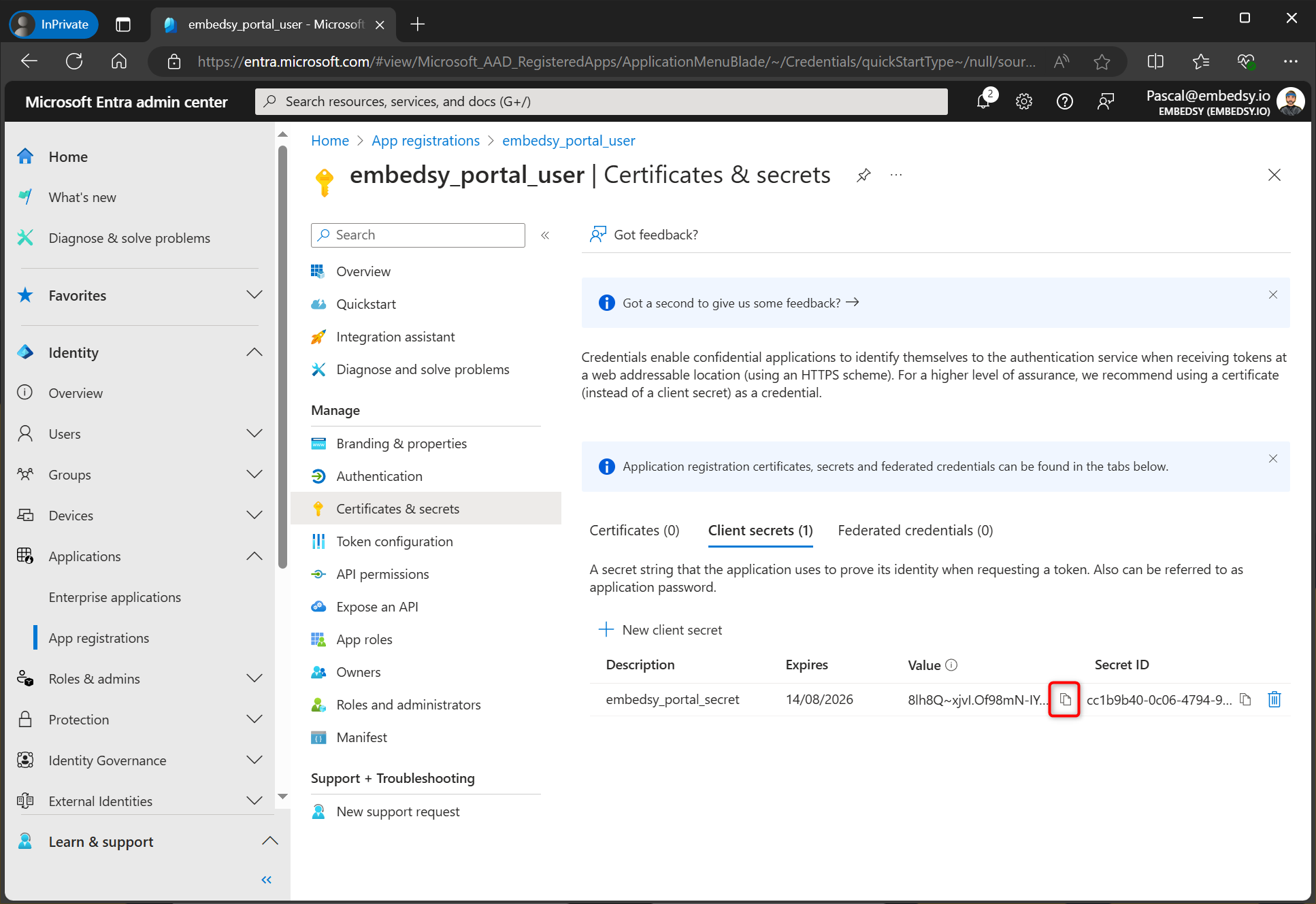
- Copy the Secret Value. You will have to add it to the
ProEmbedded Portal
Security
The Secret Value is only shown when a new Client Secret is generated. You will not be able to show it again after that. In case you were a bit too quick and don't see the Client Secret, simply create a new one according to the steps above.
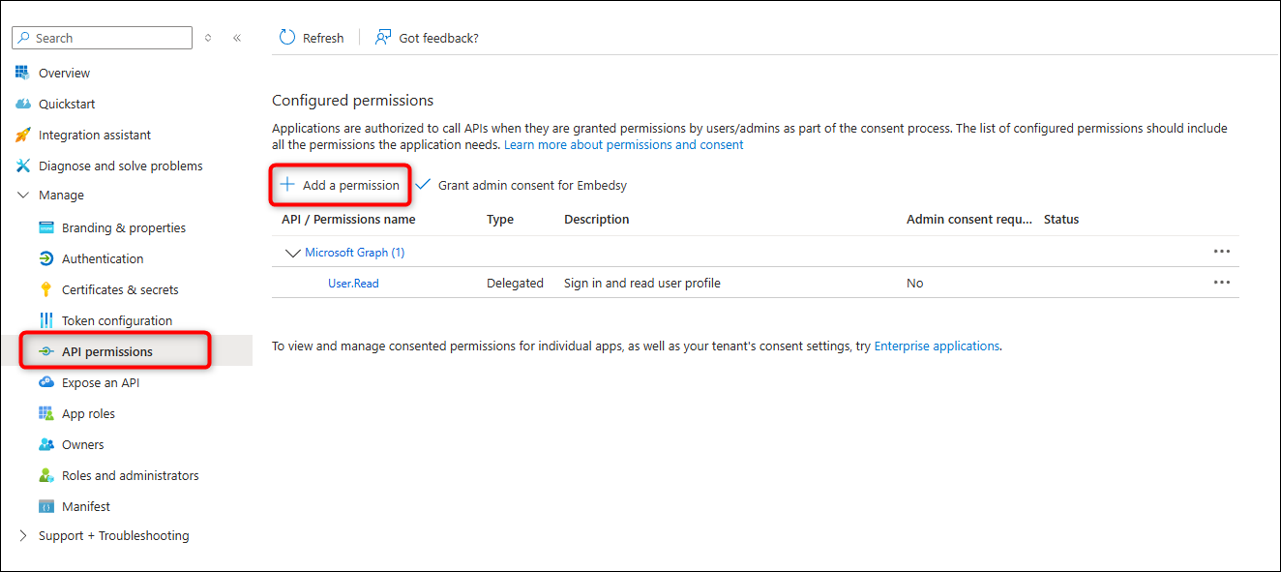
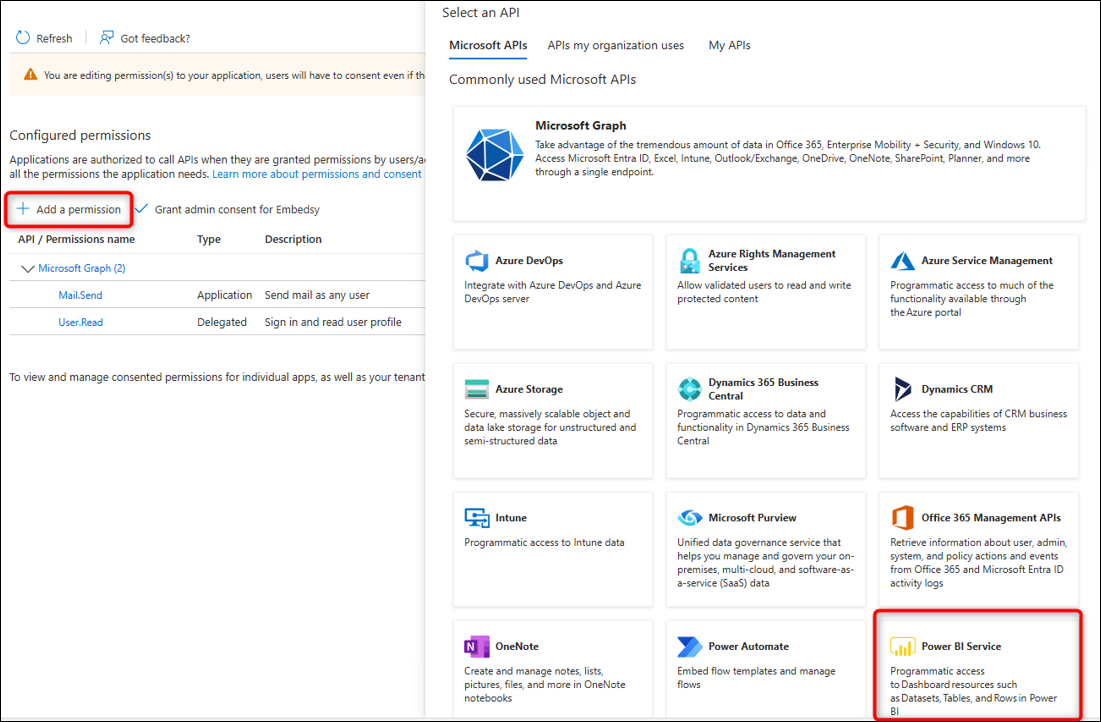
- Navigate to "API permissions" and select "Add a
permission" to enable the ProEmbedded Portal to send emails.
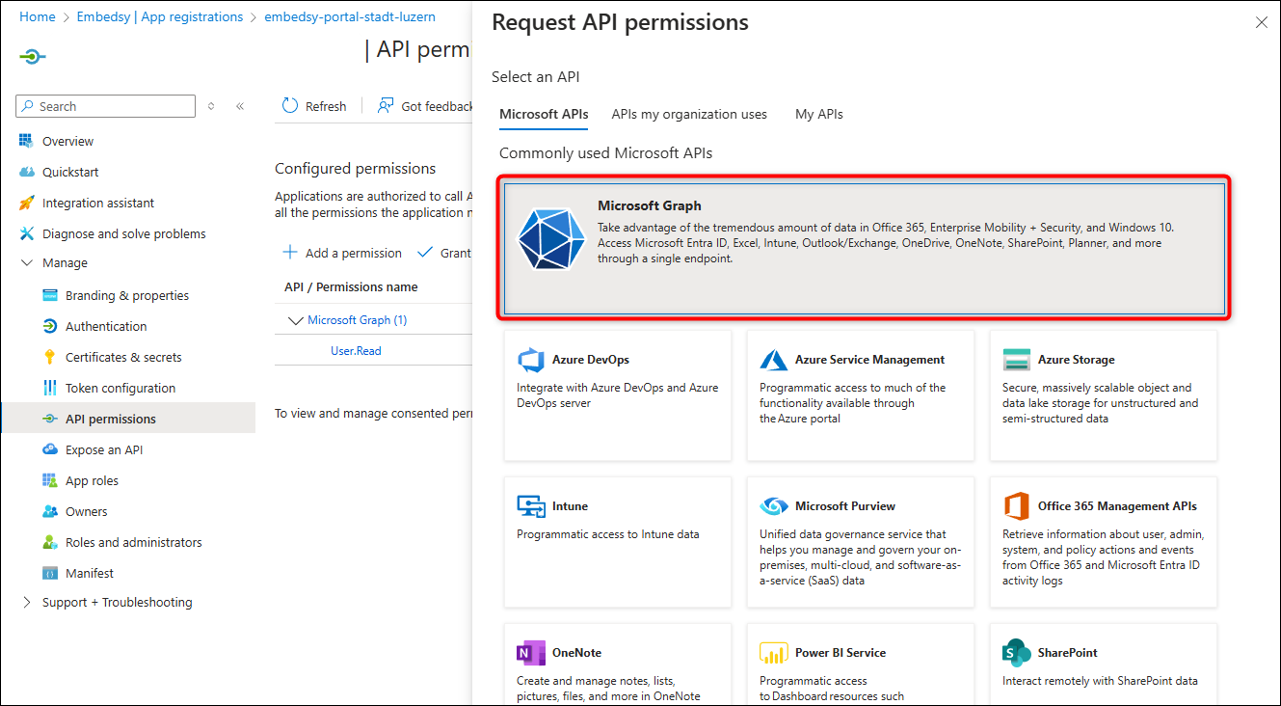
- Select "Microsoft Graph".
- Select "Application permissions".
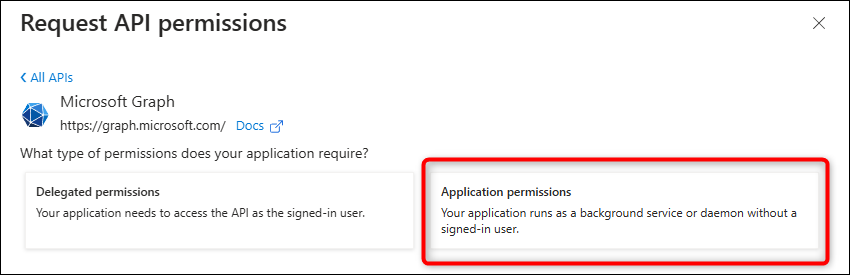
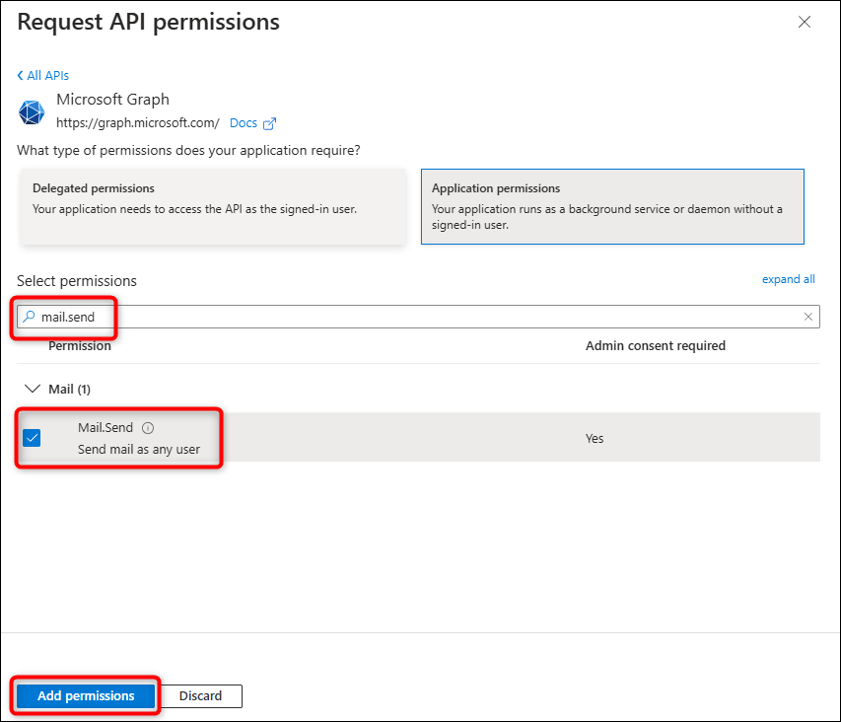
- Search for and select "mail.send" and "add
permissions".
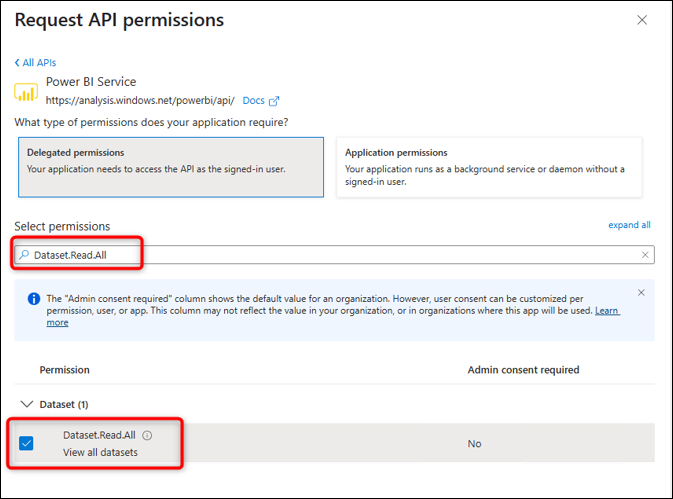
- Add another permission. This time, select "Power
BI Service".
- Select "Delegates permissions".
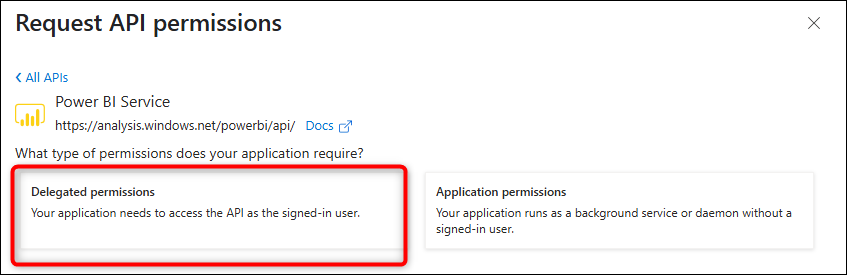
- Search for and select "Dataset.Read.All"
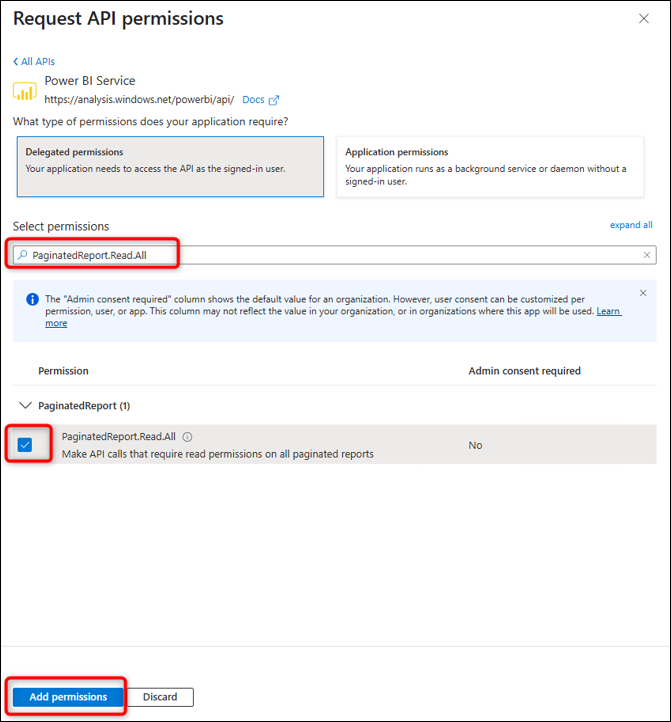
- Search for and select "PaginatedReports.Read.All"
and "add permissions".
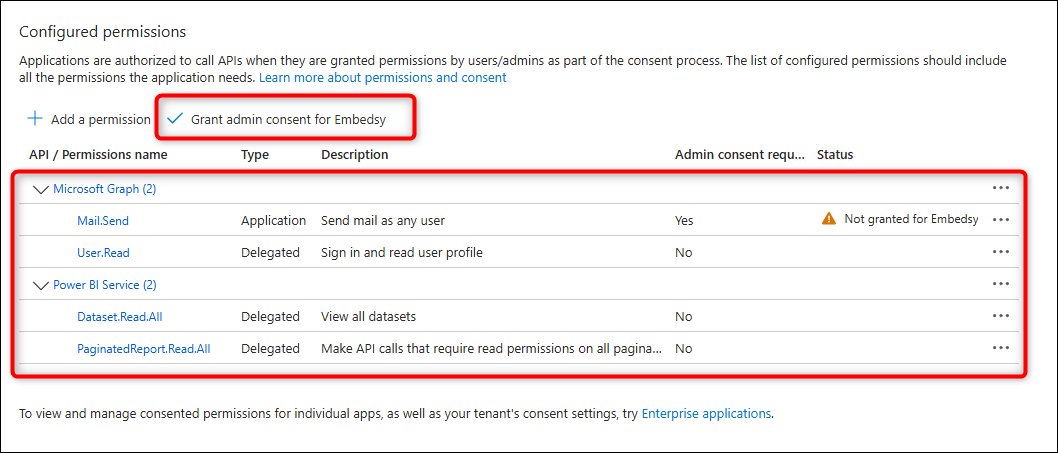
- Double check to see if you have added the correct
permissions and give admin consent to activate the new setting.
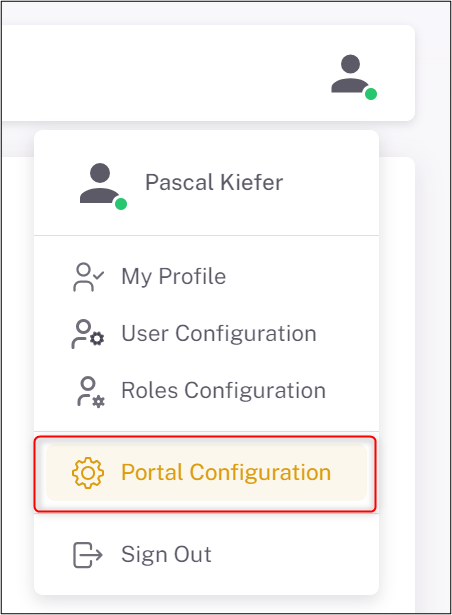
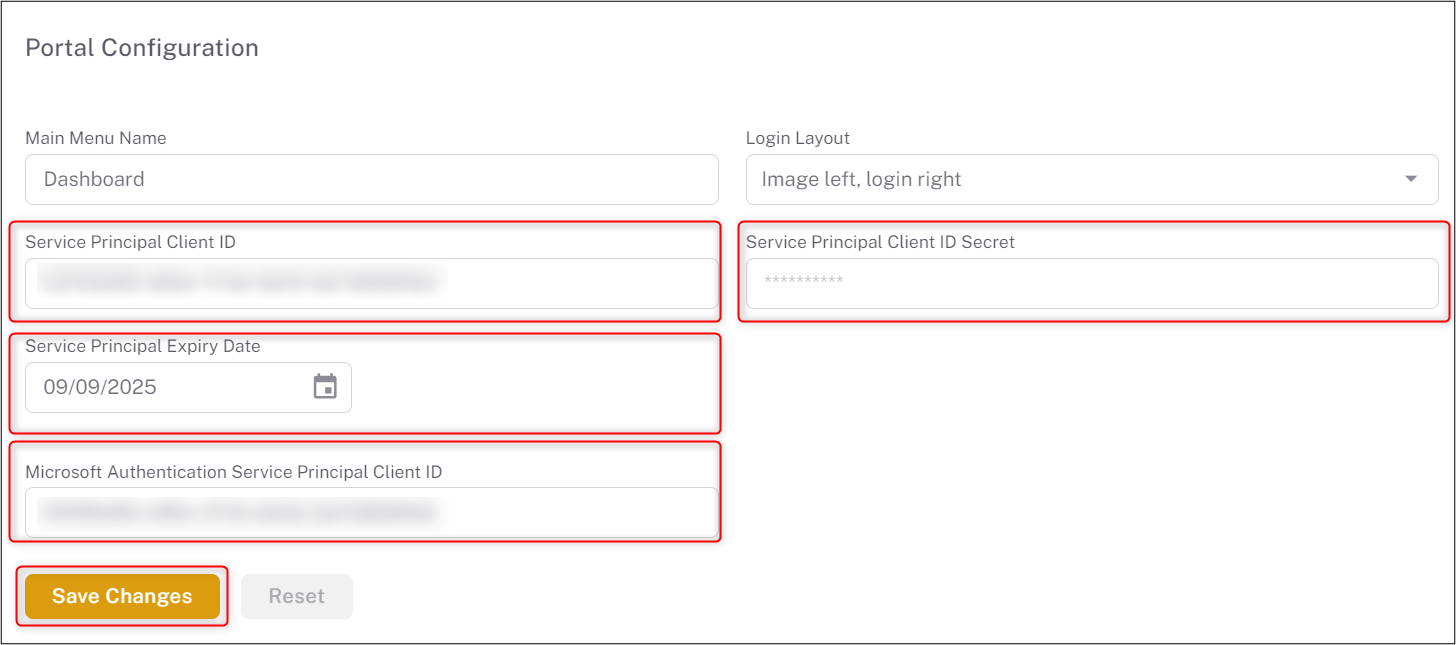
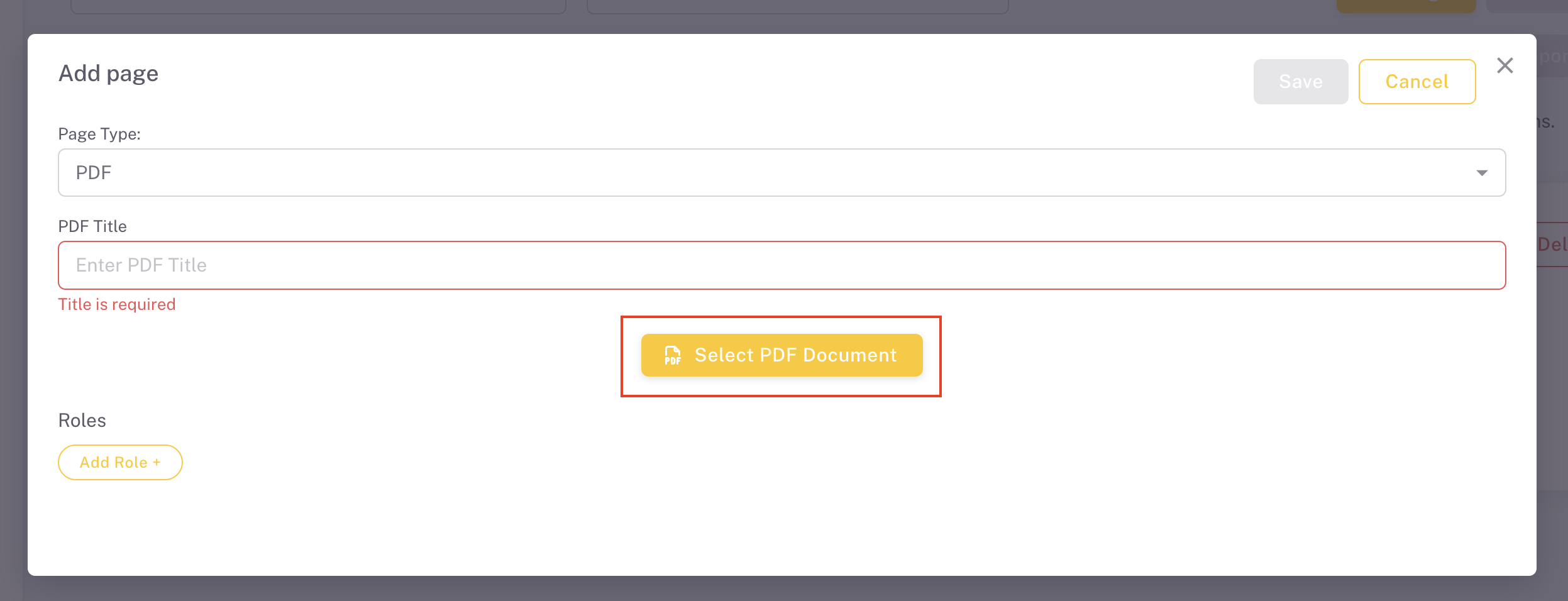
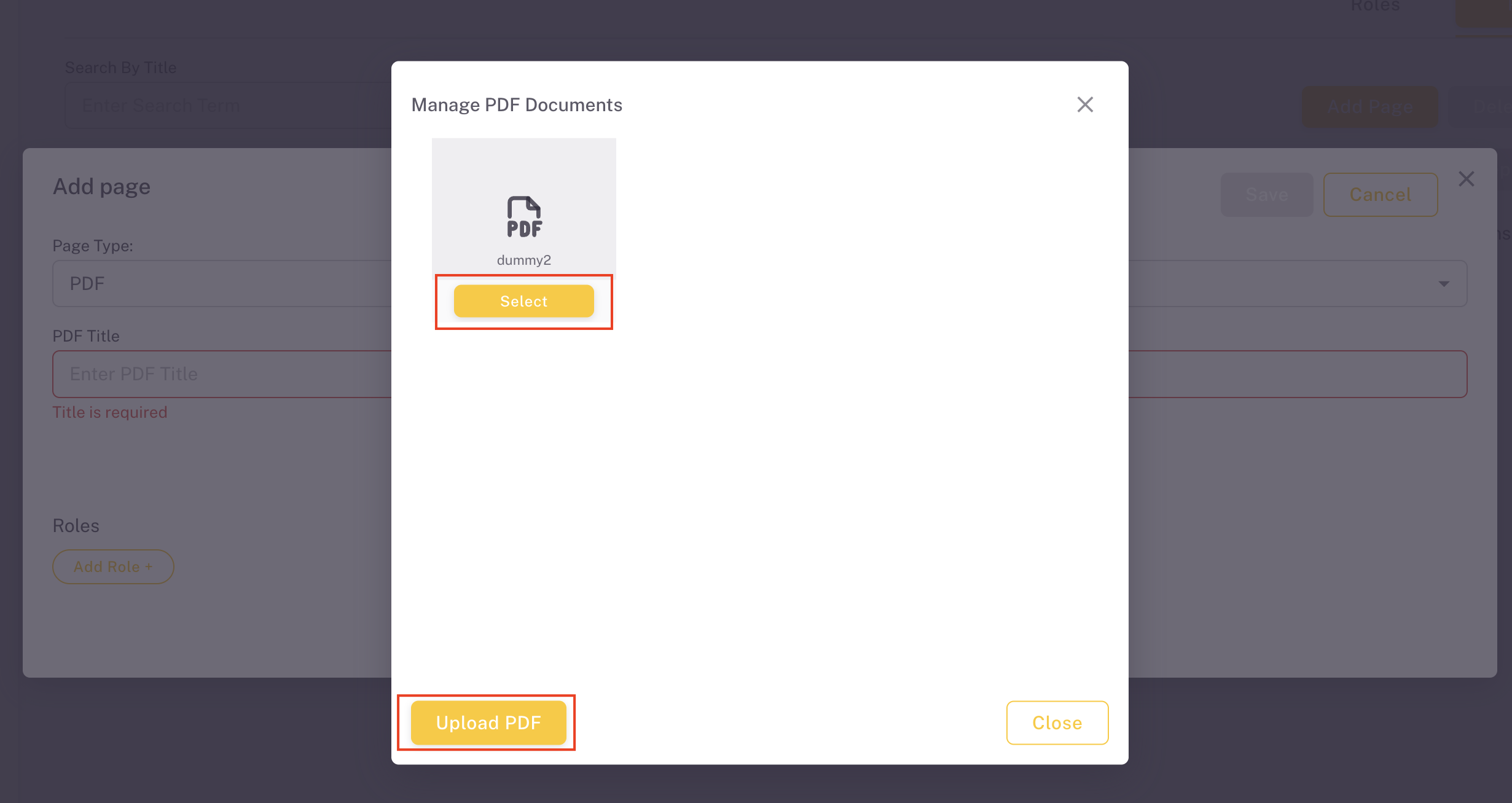
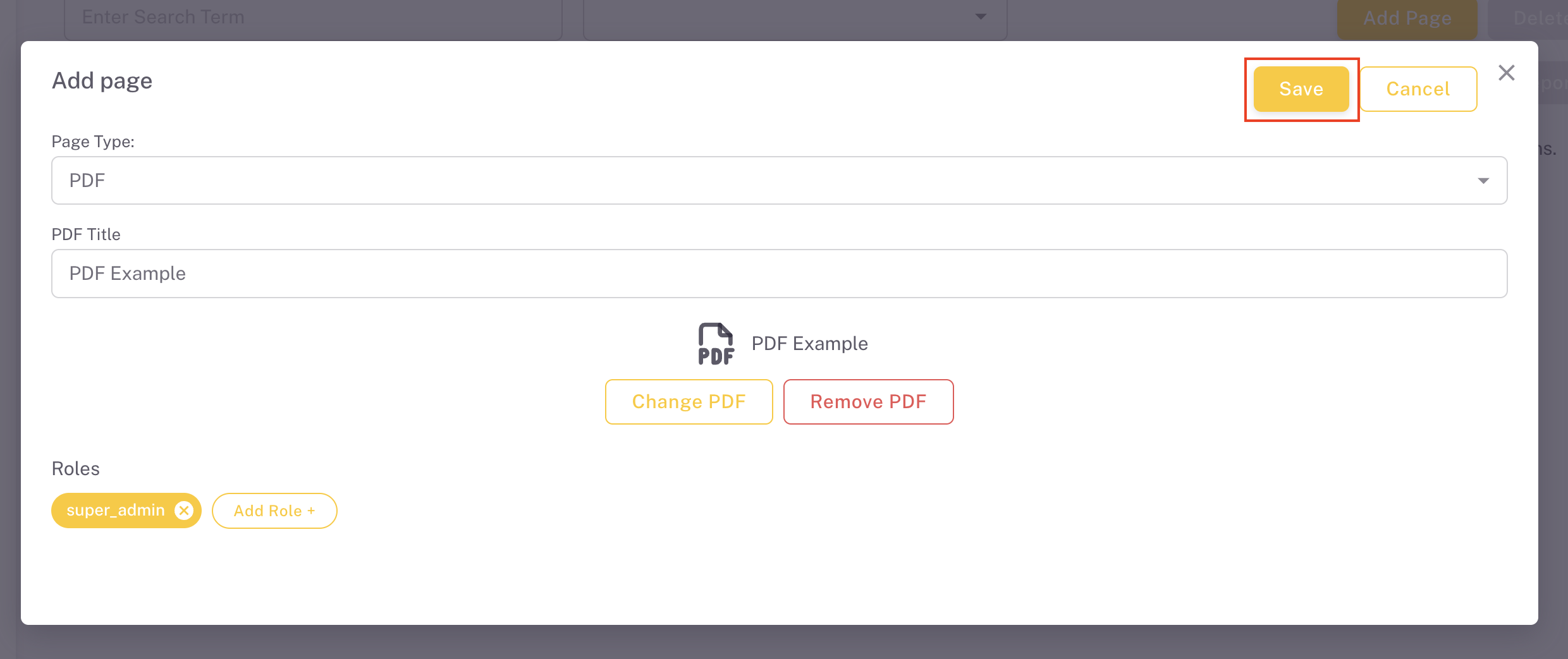
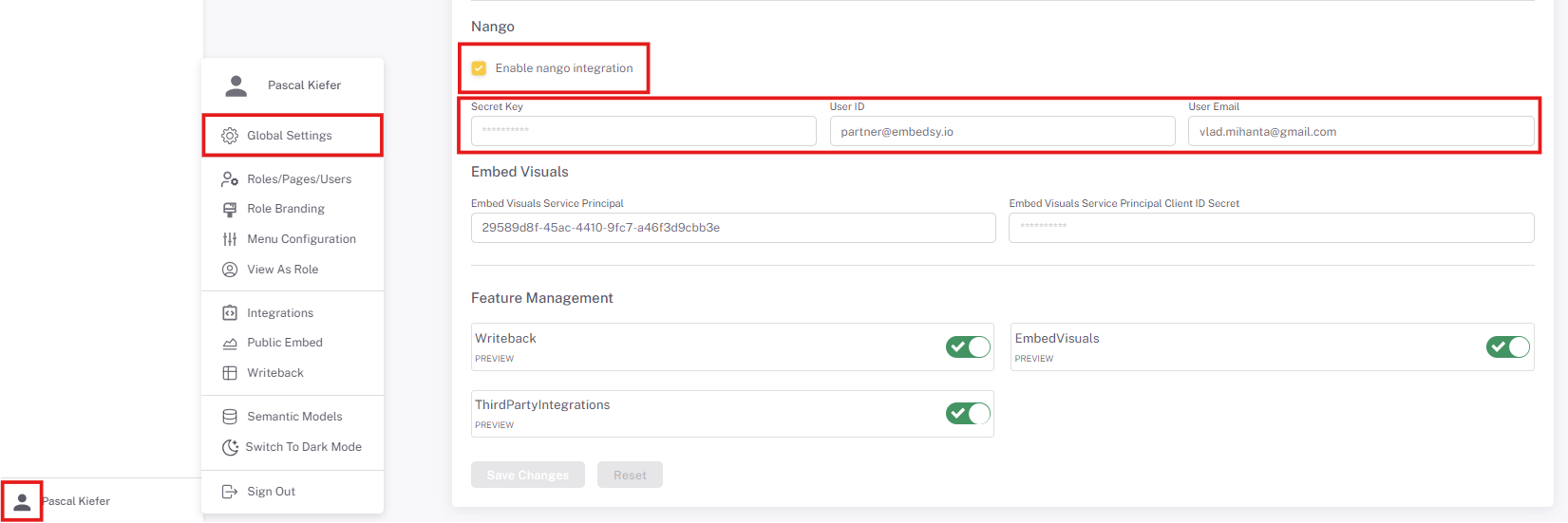
- Once done with this, the Client (App) ID and Client Secret need to be added to the ProEmbedded Portal as shown here.